🤝 How to Set Up and Use the RealHomes CRM
The RealHomes CRM plugin introduces a powerful all-in-one Customer Relationship Management system to your website. It helps real estate professionals efficiently manage leads, inquiries, deals, tasks, and communication — all from the RealHomes Frontend Dashboard.
Email Notifications
Please note that enabling the CRM does not affect your standard contact form email notifications. You will continue to receive emails for every lead and inquiry as usual, alongside having the data automatically saved in the CRM.
Follow the steps below to install, configure, and take full advantage of the RealHomes CRM system.
🔌 Step 1: Install & Activate the Plugin
- Navigate to Dashboard → RealHomes → Plugins
- Locate the RealHomes CRM plugin in the bundled plugins list
- Click Install, then Activate
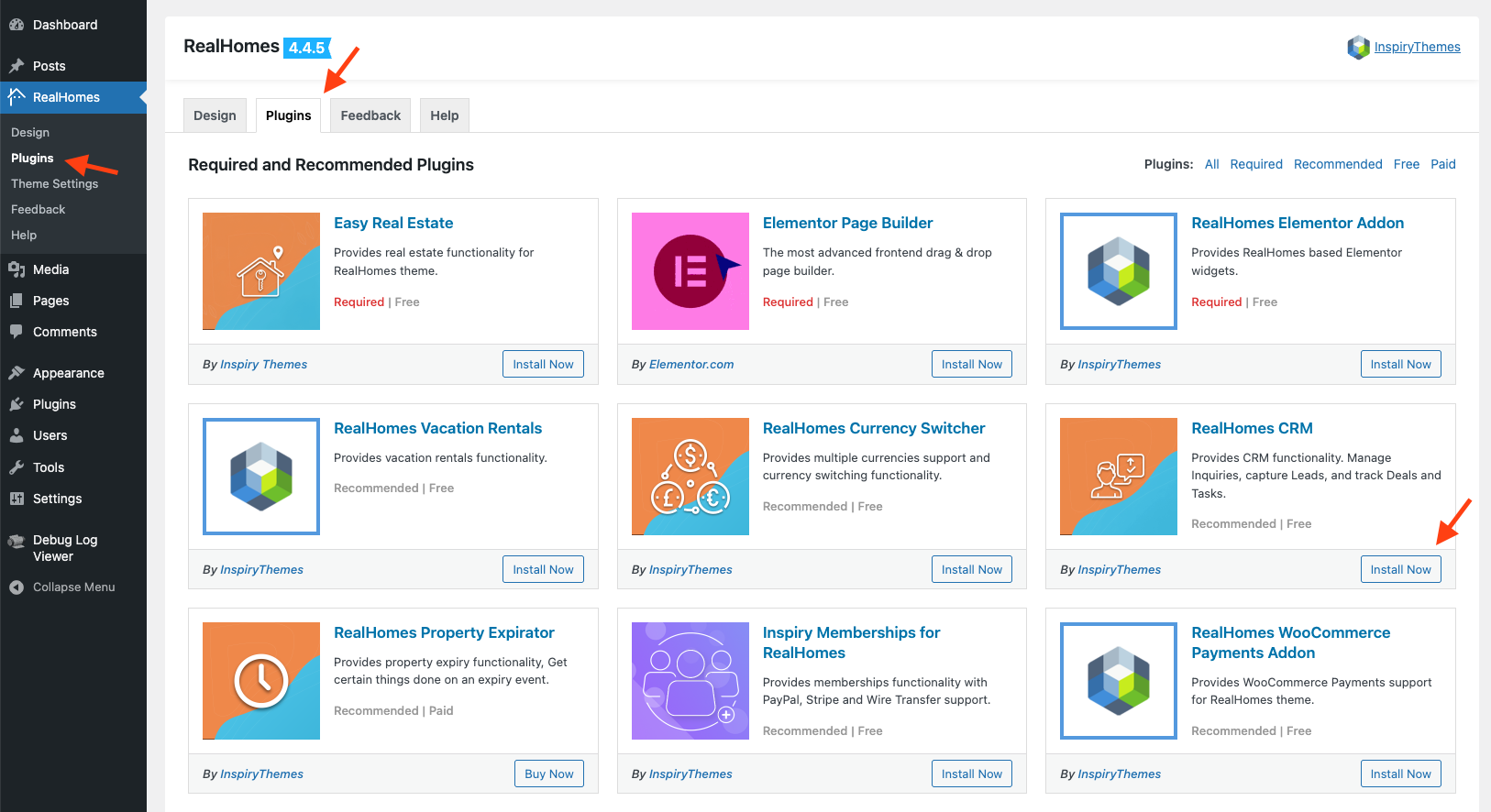
After activation:
- A CRM Settings section appears under RealHomes in the backend
- A new Properties CRM menu appears in the Frontend Dashboard
⚙️ Step 2: Configure CRM Settings
⚙️ General Settings
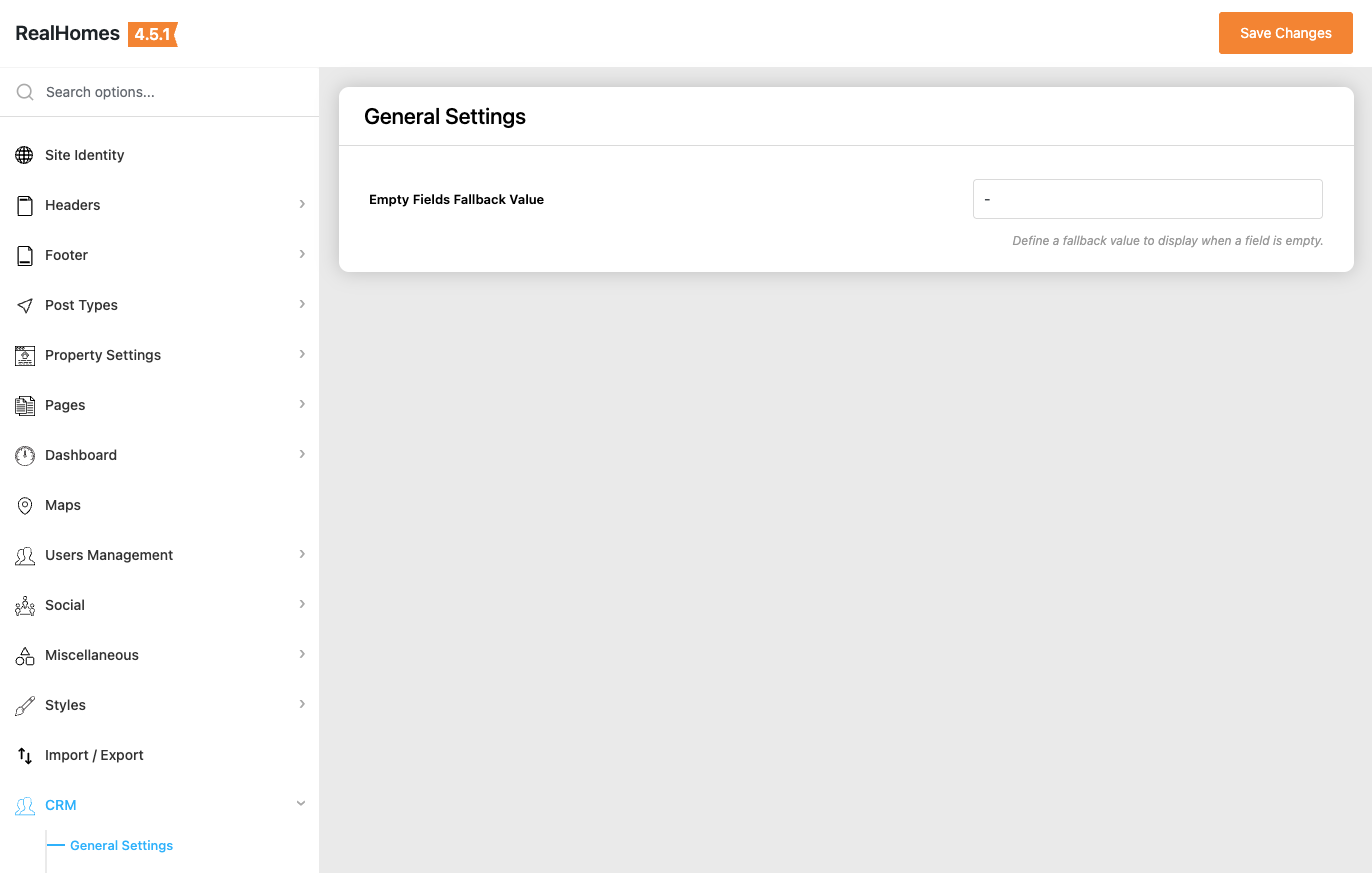
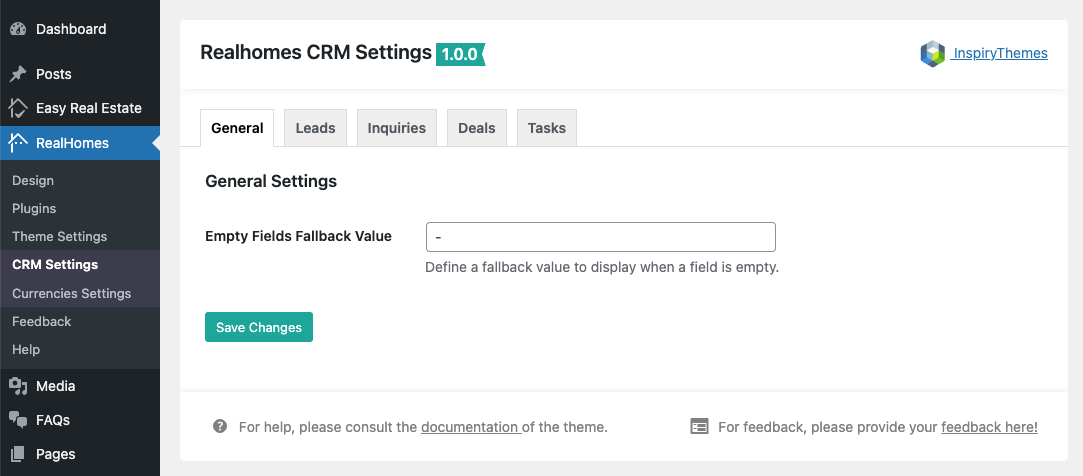
- Empty Fields Fallback Value: Set a placeholder such as
-for empty fields.
RealHomes Settings
➤ ➤ ➤ ➤
Legacy Settings
➤ ➤ ➤
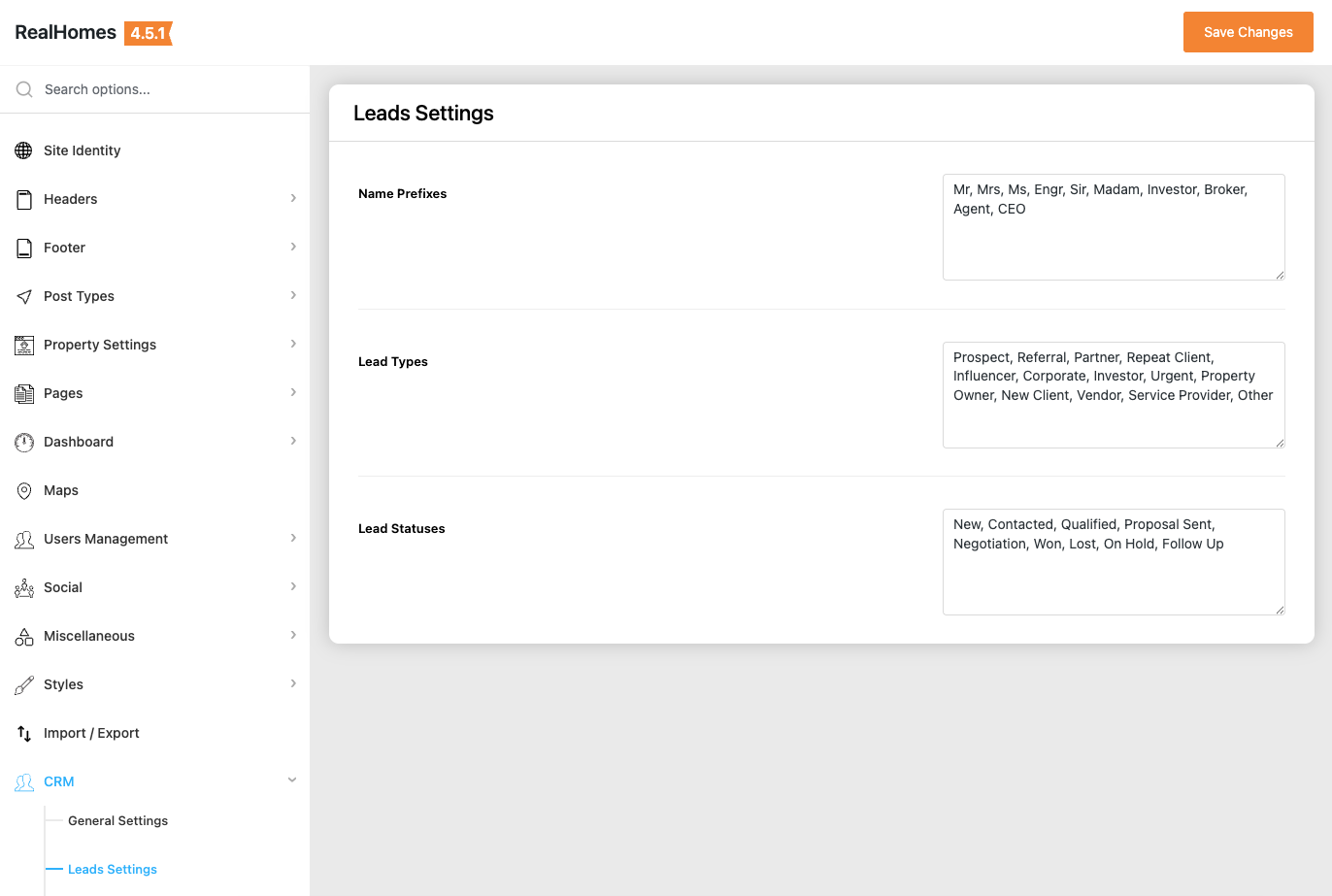
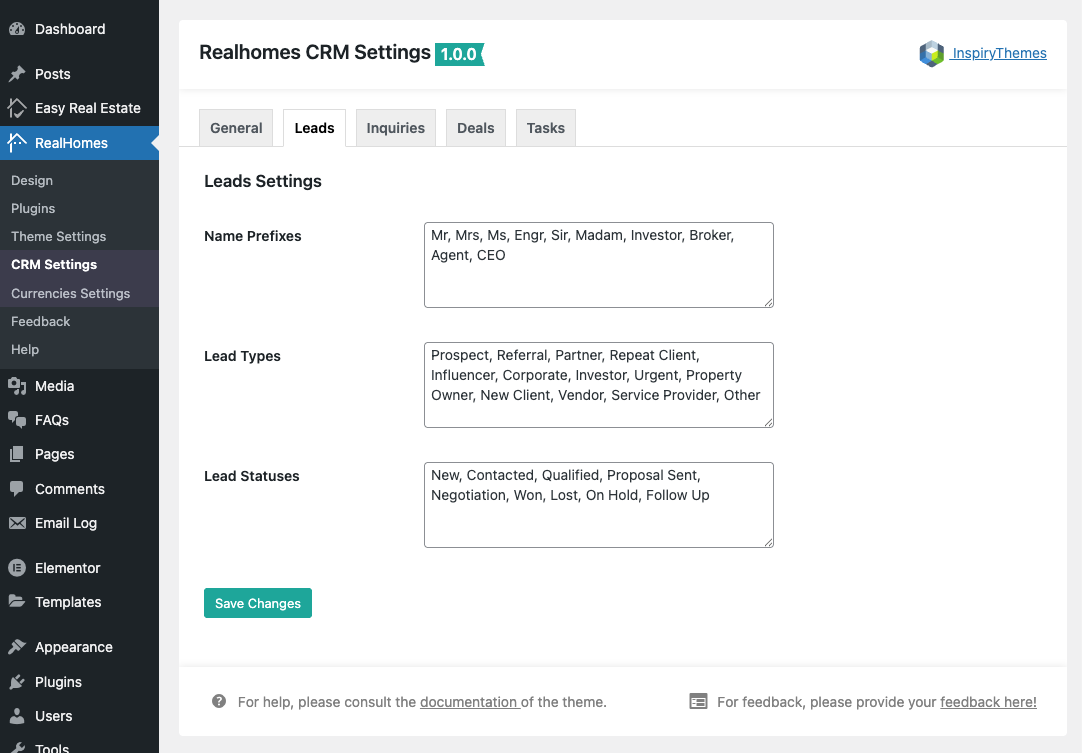
👤 Leads Settings
- Name Prefixes: e.g., Mr, Ms, Investor
- Lead Types: e.g., Prospect, Referral, Tenant
- Lead Statuses: e.g., New, Contacted, Qualified, Won, Lost
RealHomes Settings
➤ ➤ ➤ ➤
Legacy Settings
➤ ➤ ➤
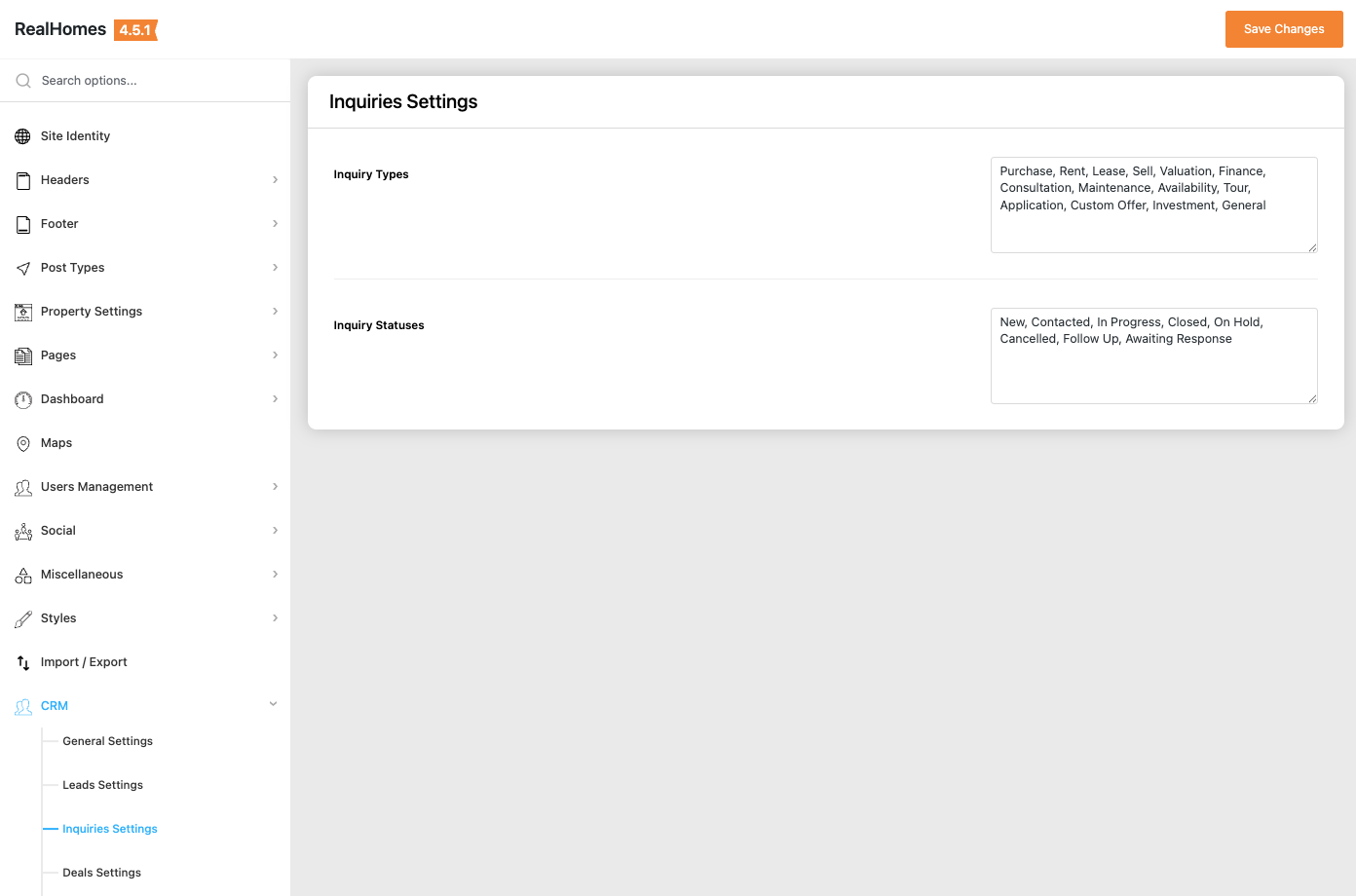
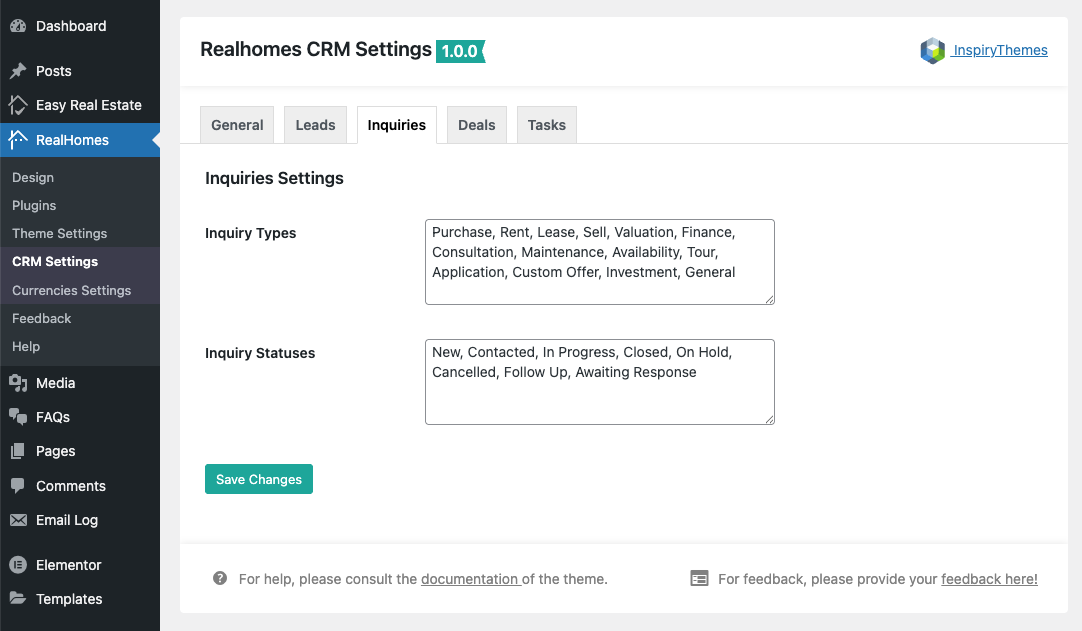
📩 Inquiries Settings
- Inquiry Types: Purchase, Rent, Tour, Valuation
- Inquiry Statuses: New, In Progress, Closed, Awaiting Response
RealHomes Settings
➤ ➤ ➤ ➤
Legacy Settings
➤ ➤ ➤
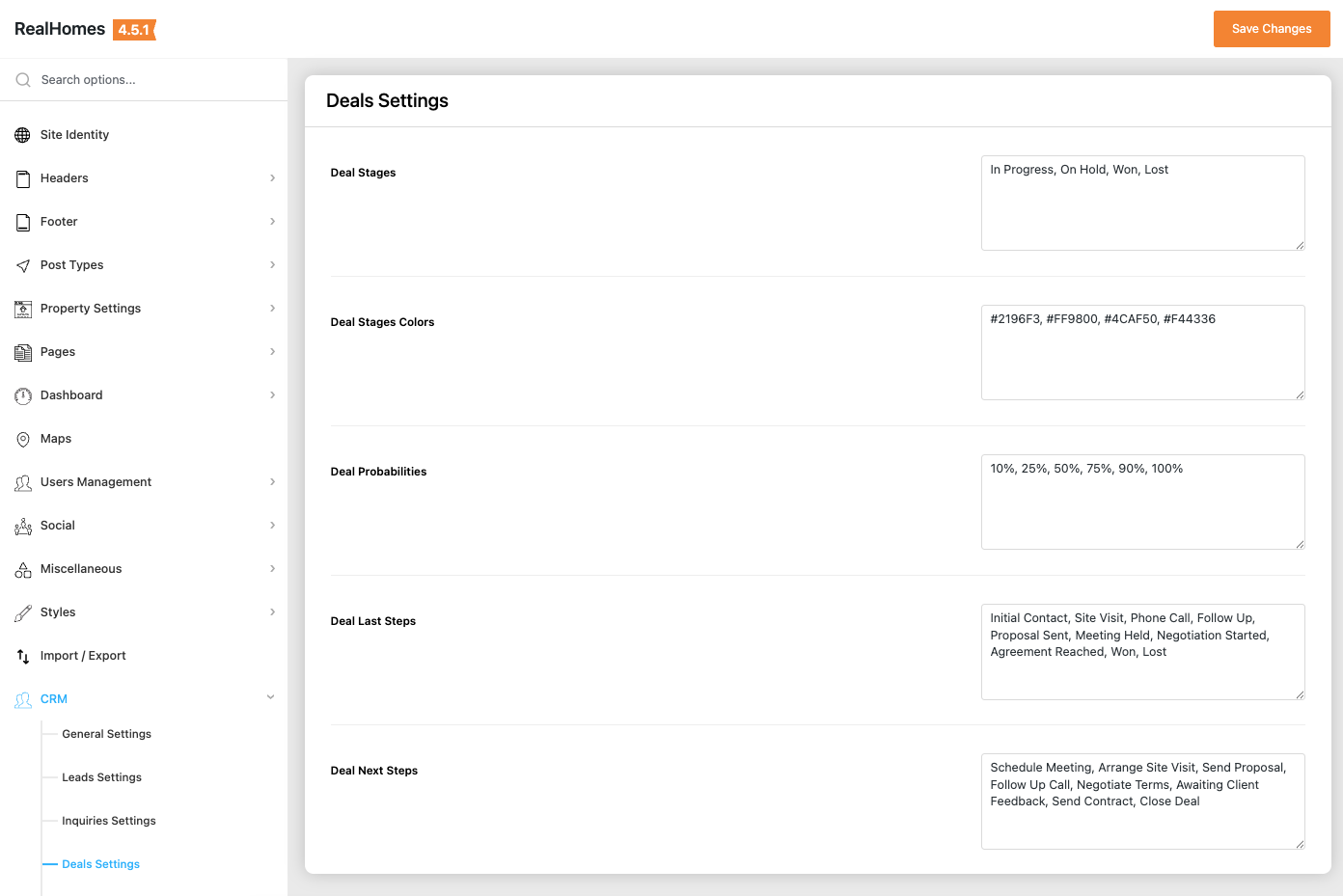
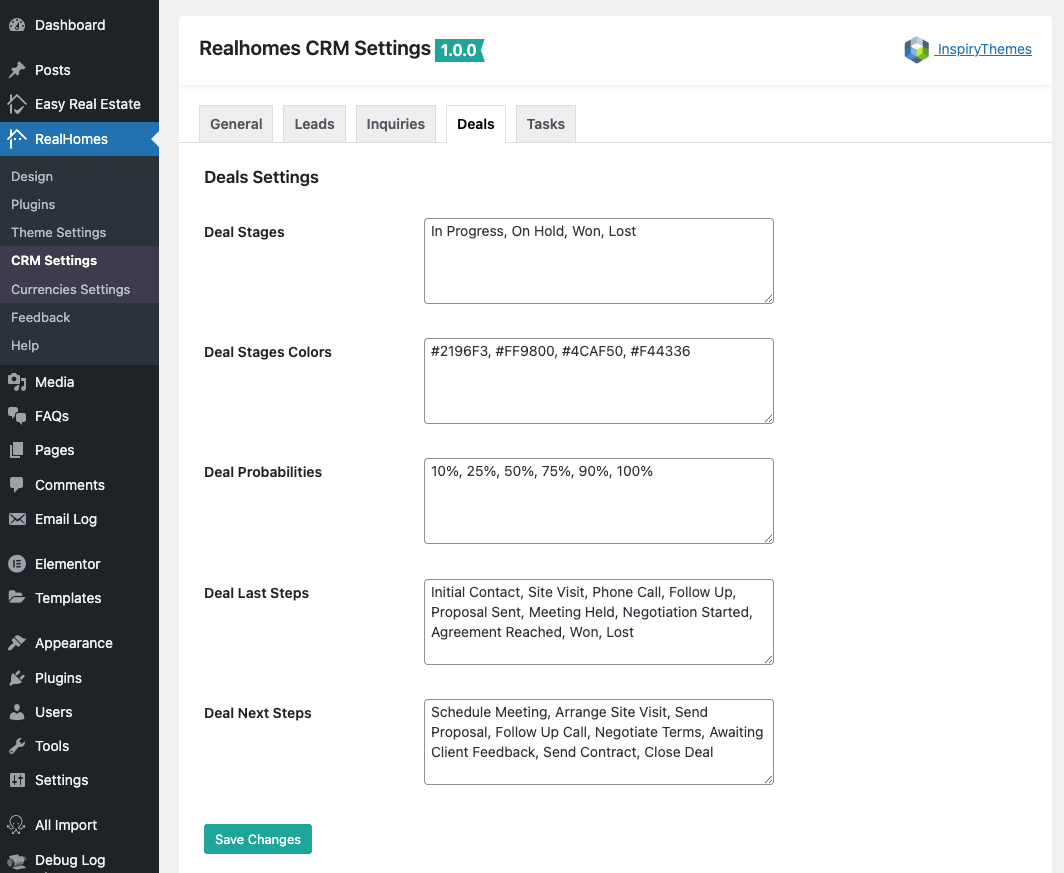
💼 Deals Settings
- Define your full pipeline using:
- Deal Stages
- Stage Colors
- Probabilities
- Last Steps
- Next Steps
RealHomes Settings
➤ ➤ ➤ ➤
Legacy Settings
➤ ➤ ➤
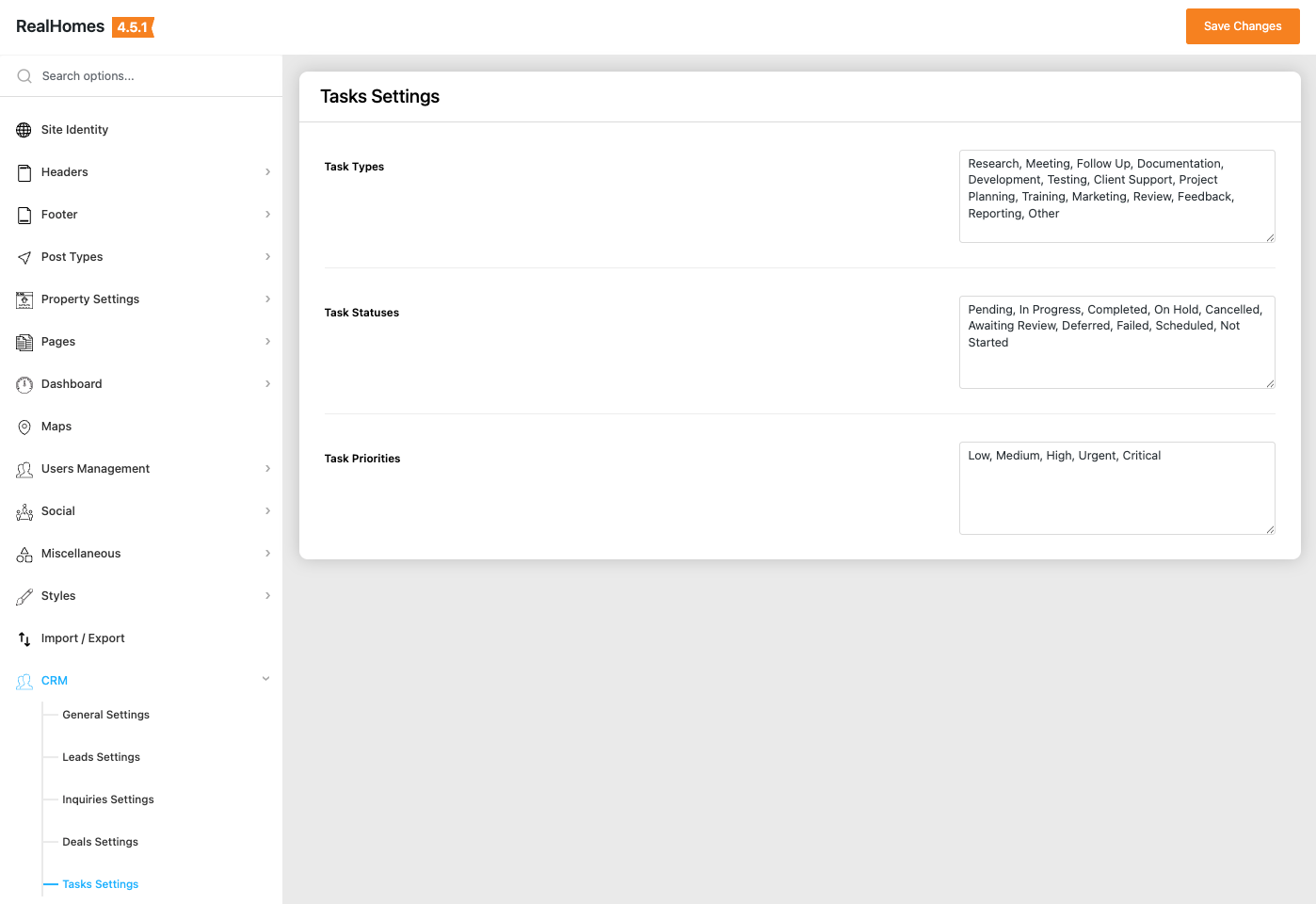
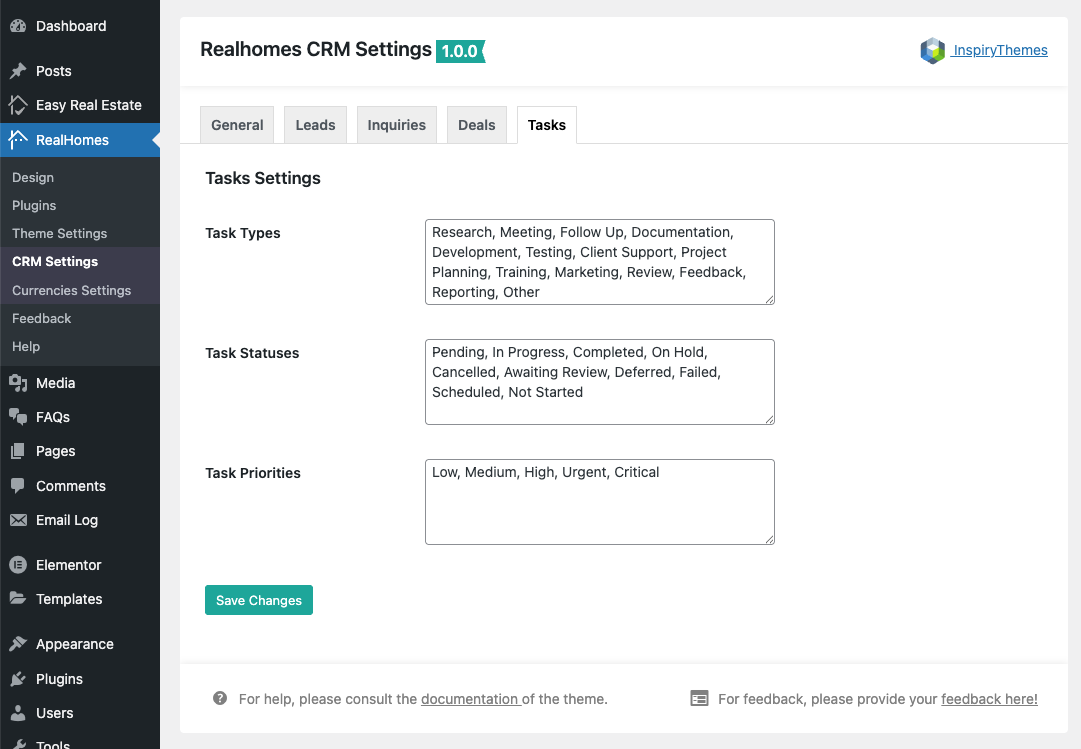
📝 Tasks Settings
Configure CRM activity management: - Task Types - Task Statuses - Task Priorities
RealHomes Settings
➤ ➤ ➤ ➤
Legacy Settings
➤ ➤ ➤
🧭 Step 3: Understanding the CRM Dashboard
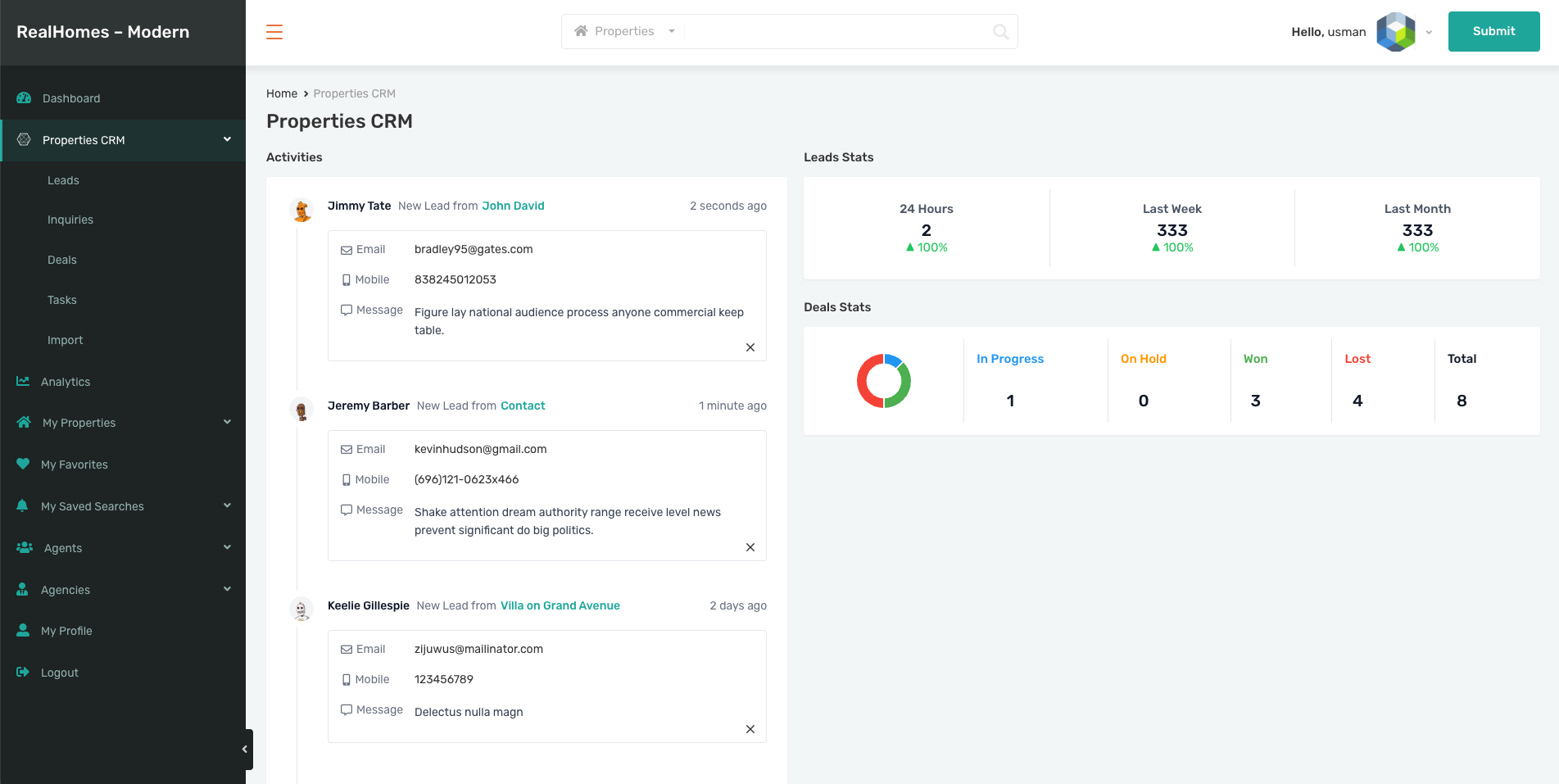
Open the Properties CRM section in your Frontend Dashboard to view your real-time CRM workspace.
📊 CRM Dashboard Overview
The dashboard provides instant insights:
- Activities Feed
- Leads stats (24 Hours, Last Week, Last Month)
- Deals stats by stage (In Progress, Won, Lost, etc.)
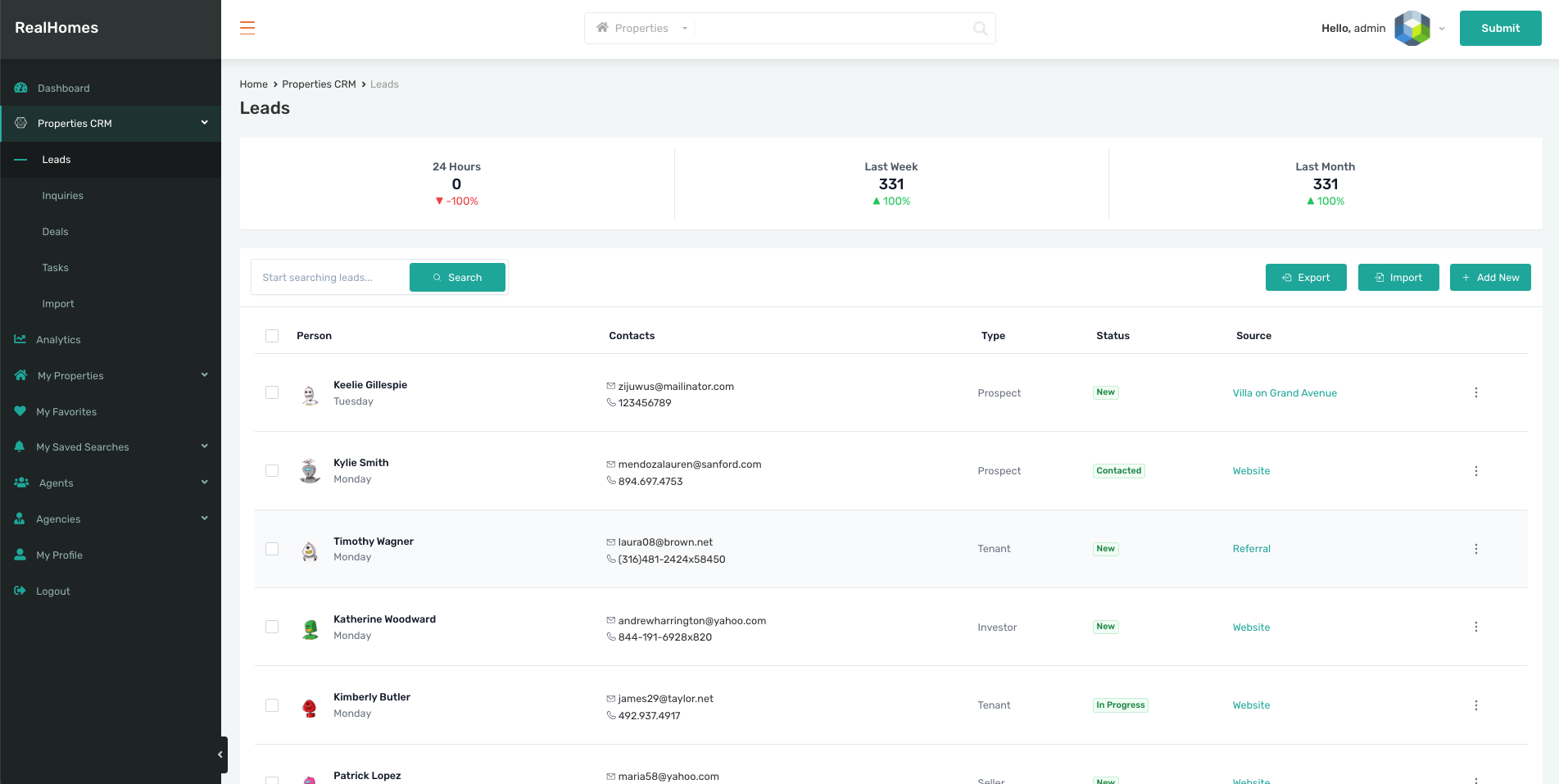
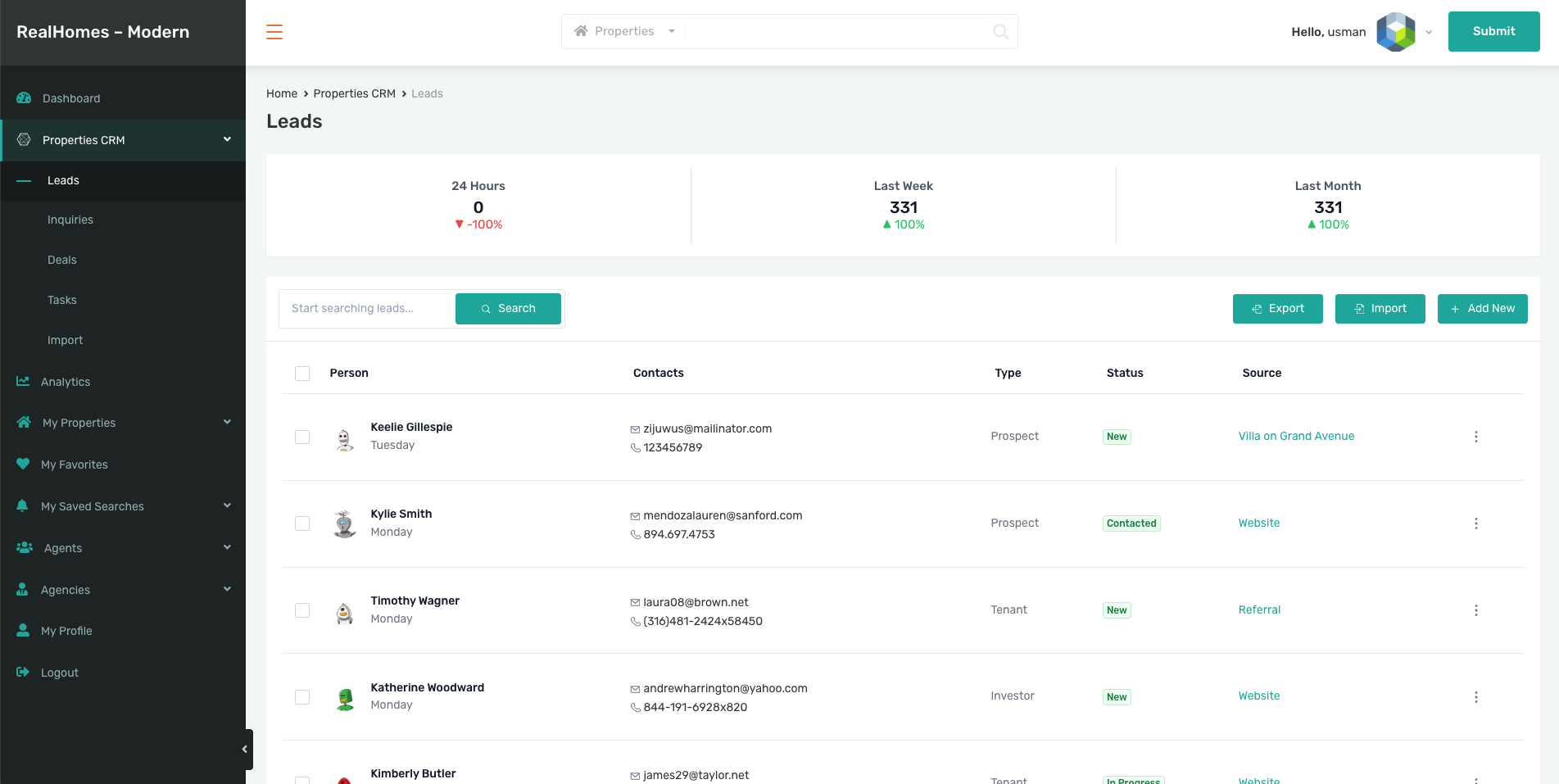
👥 Leads
Manage all your leads with fields such as:
- Name
- Contact Details
- Lead Type
- Status
- Source
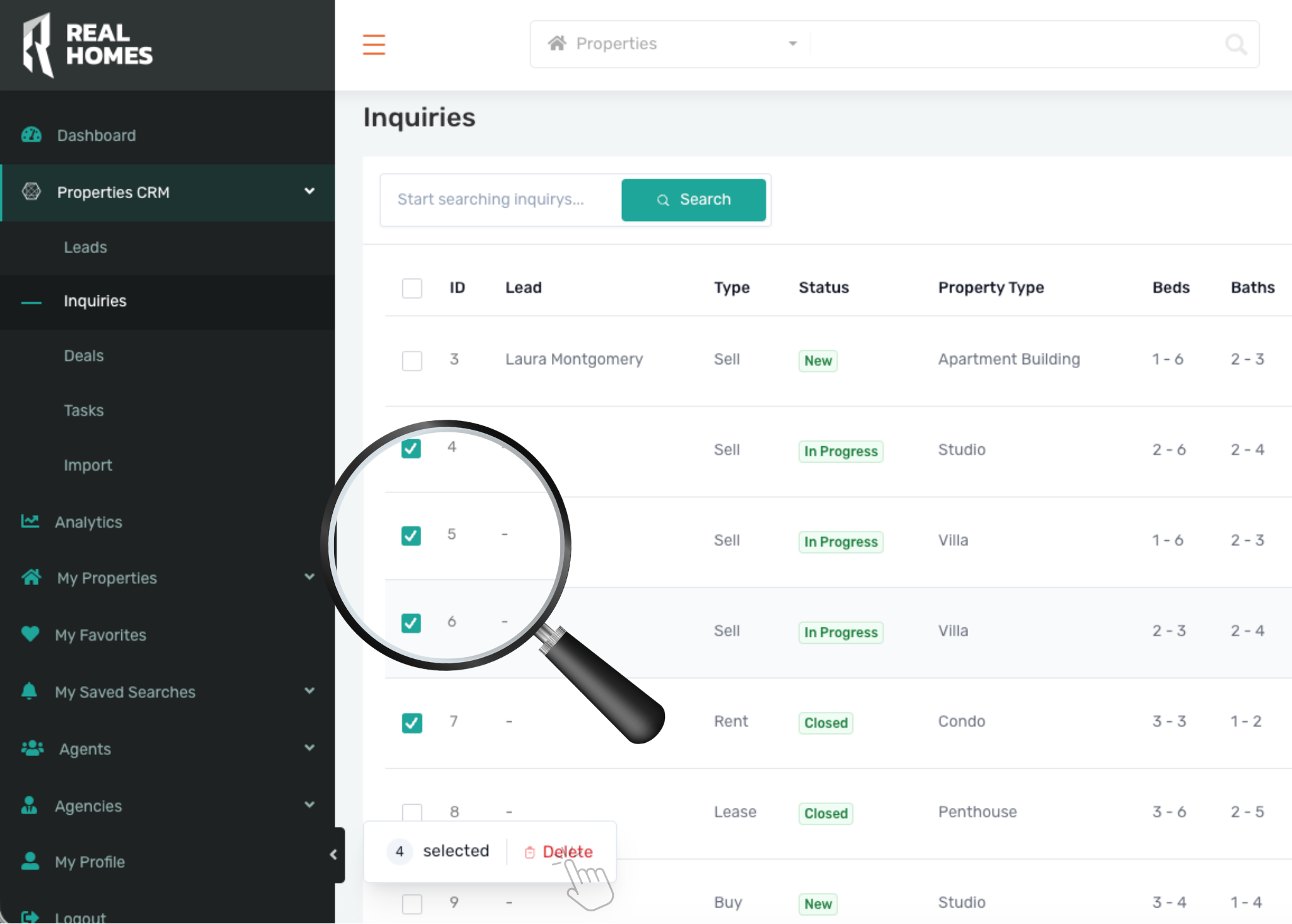
Additional Features: - Bulk Selection & Delete
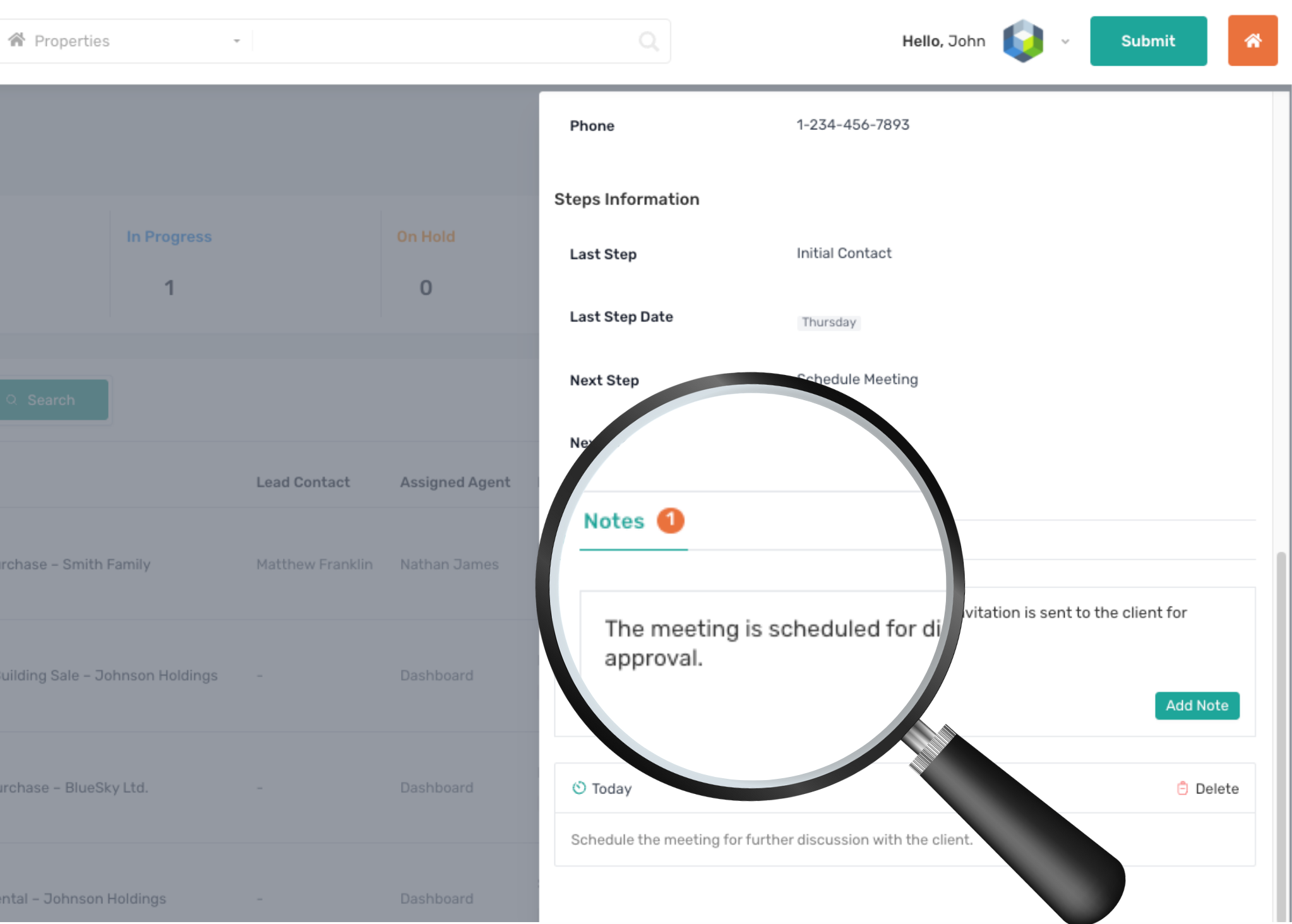
- Lead Notes System
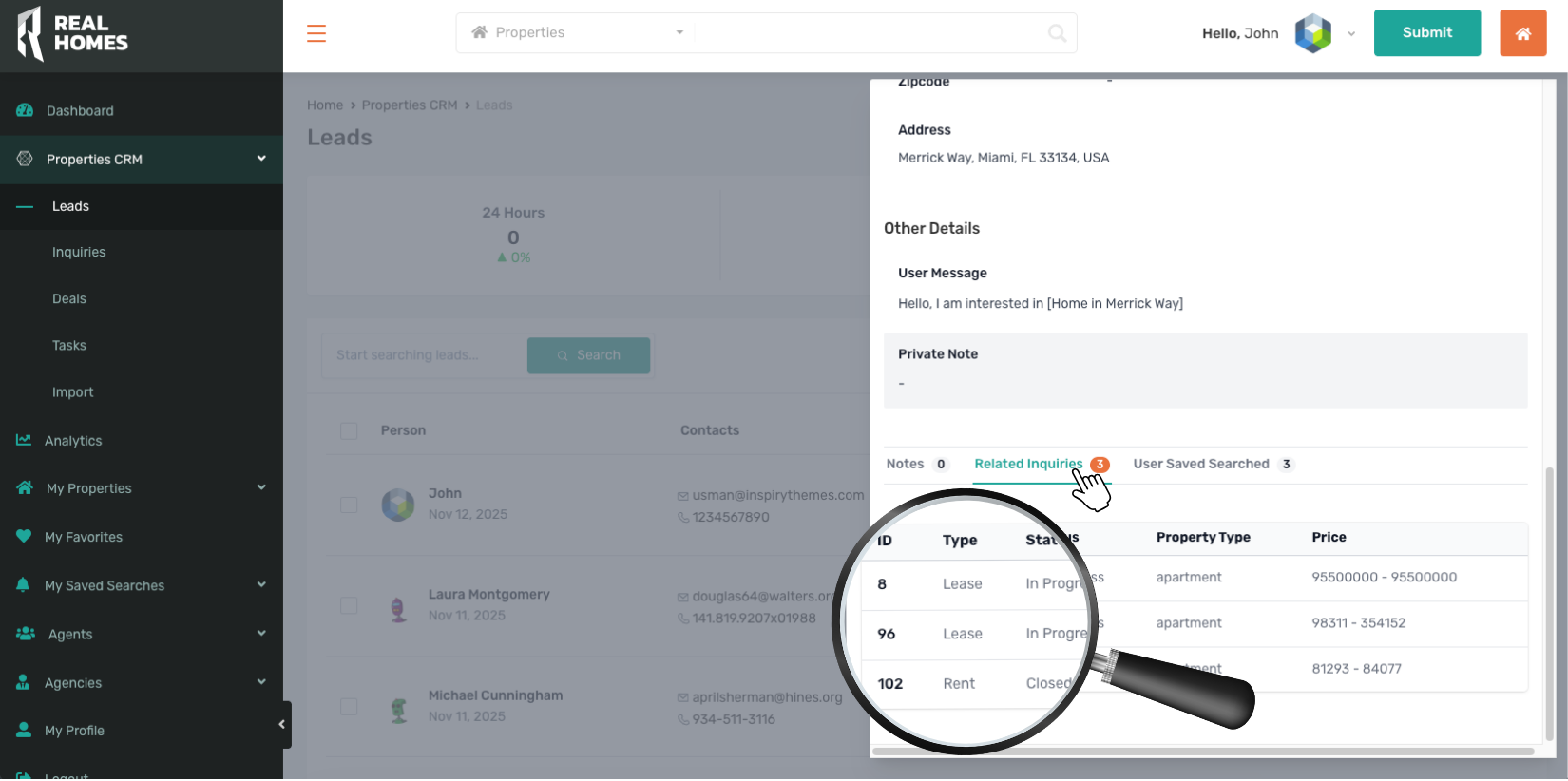
- View Related Inquiries
- View User Saved Searches
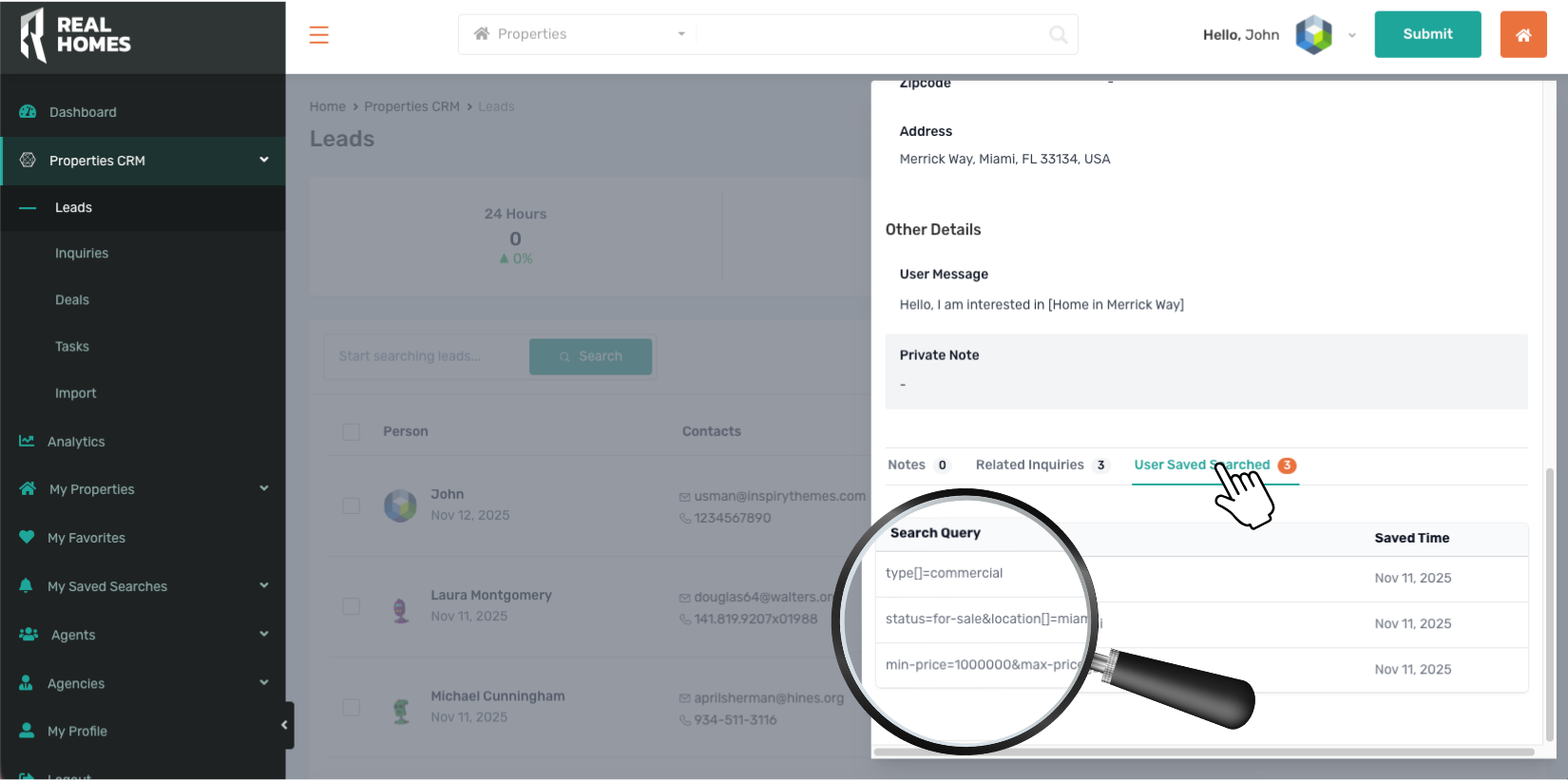
📨 Inquiries
Manage property-specific inquiries:
- Lead
- Type
- Status
- Property Specs
- Price
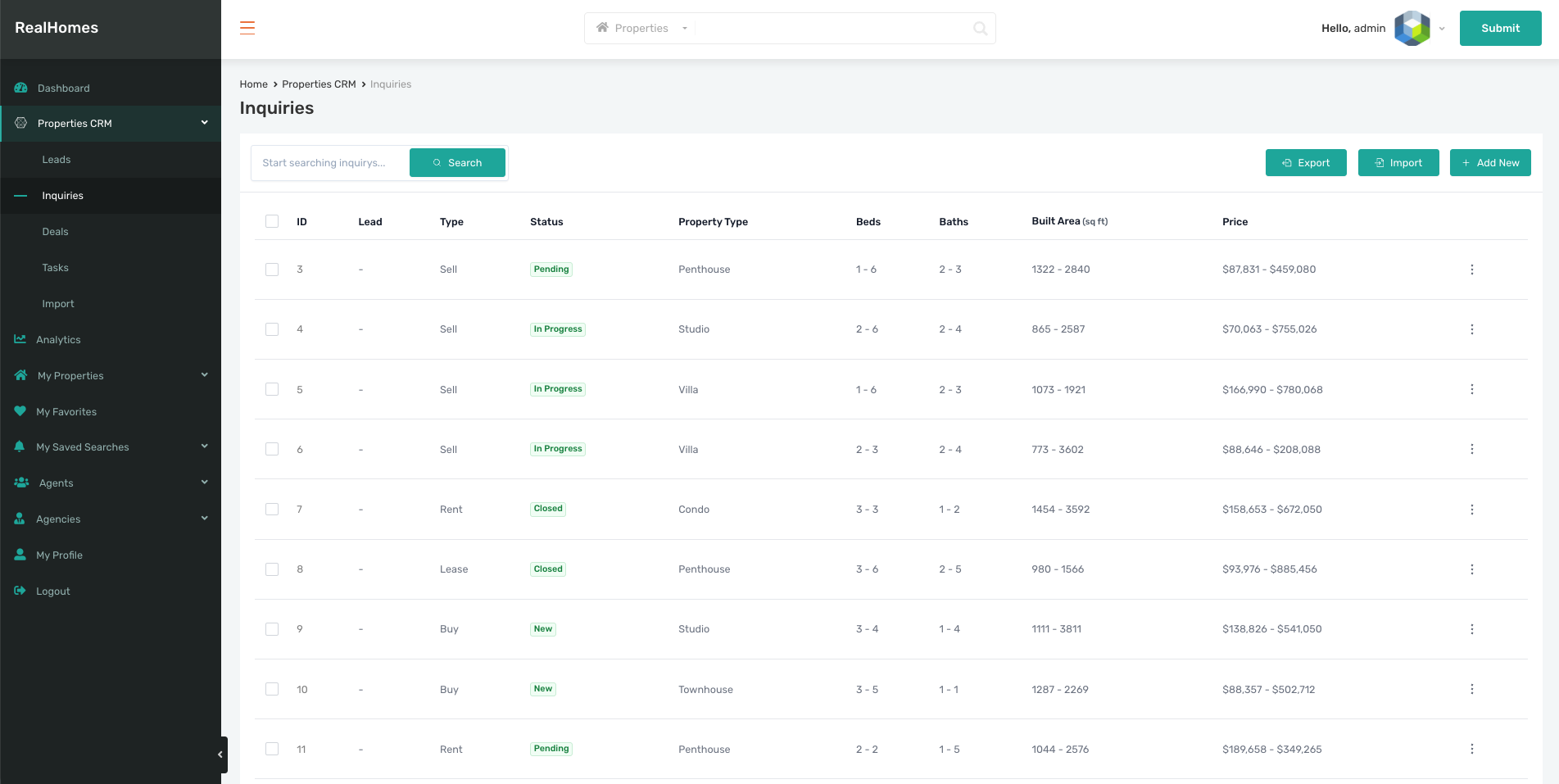
💰 Deals
Track and manage your sales pipeline visually and interactively.
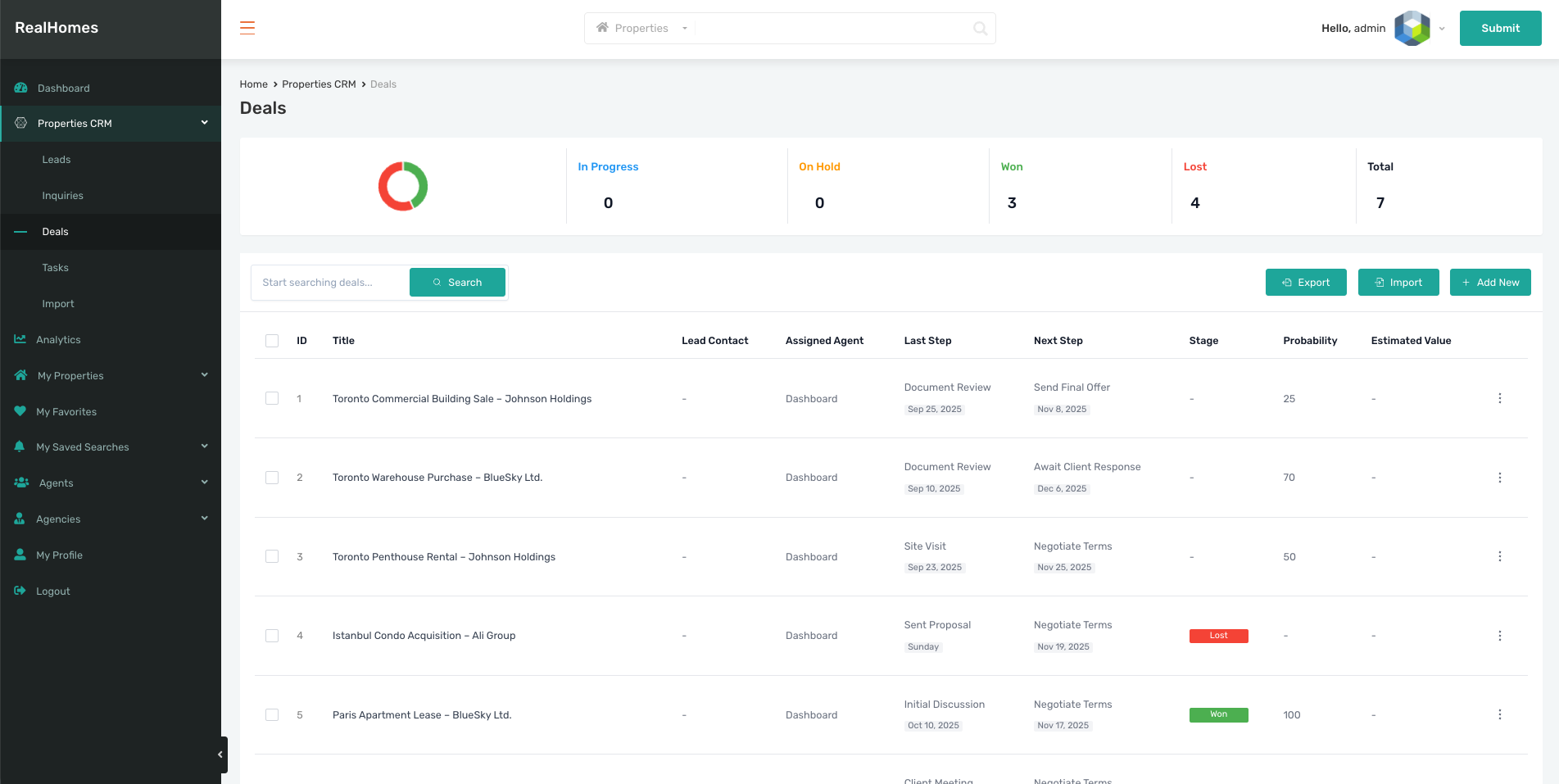
Features include:
- Animated pipeline navigation
- Update last/next steps
- Change stages
- Estimate value tracking
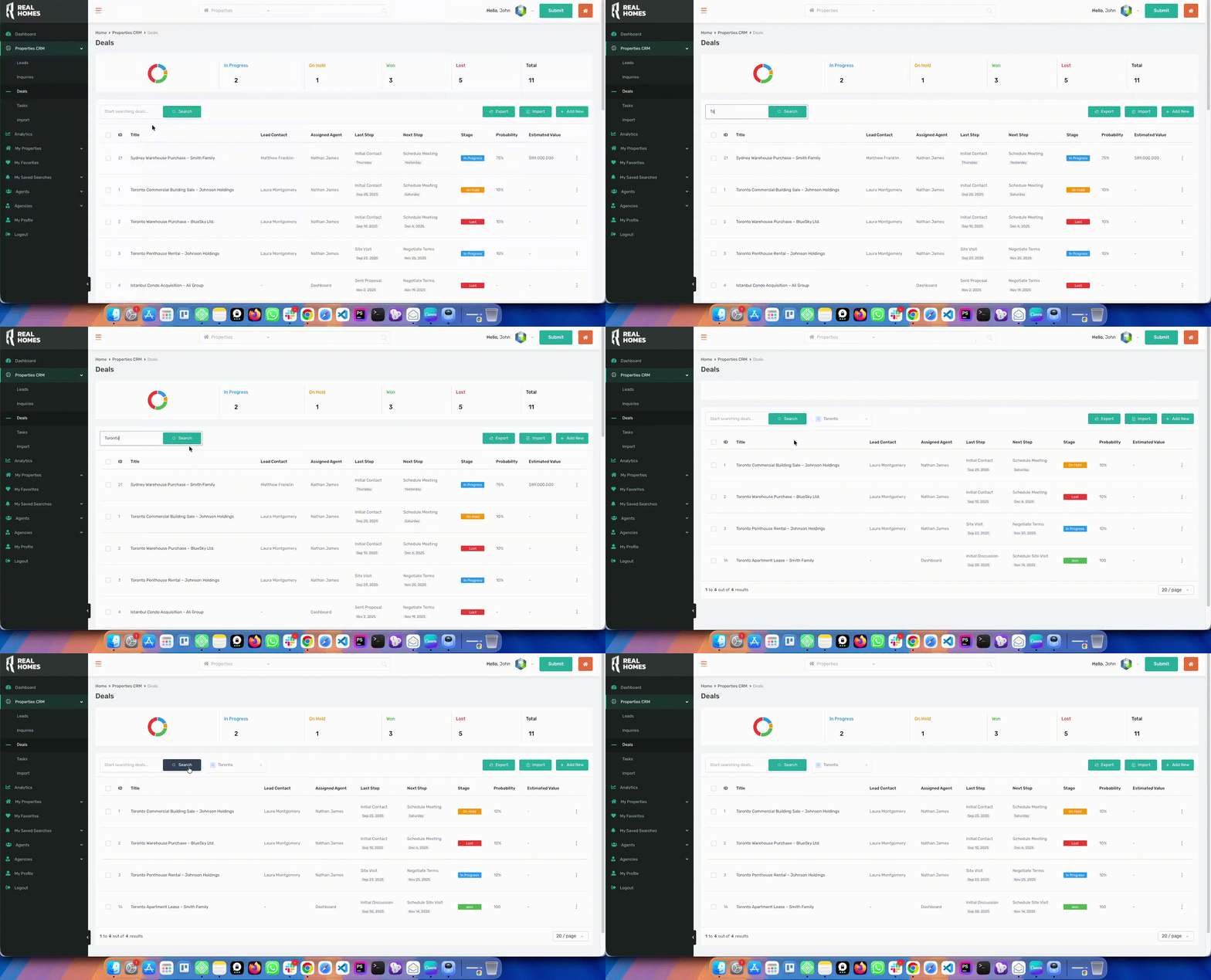
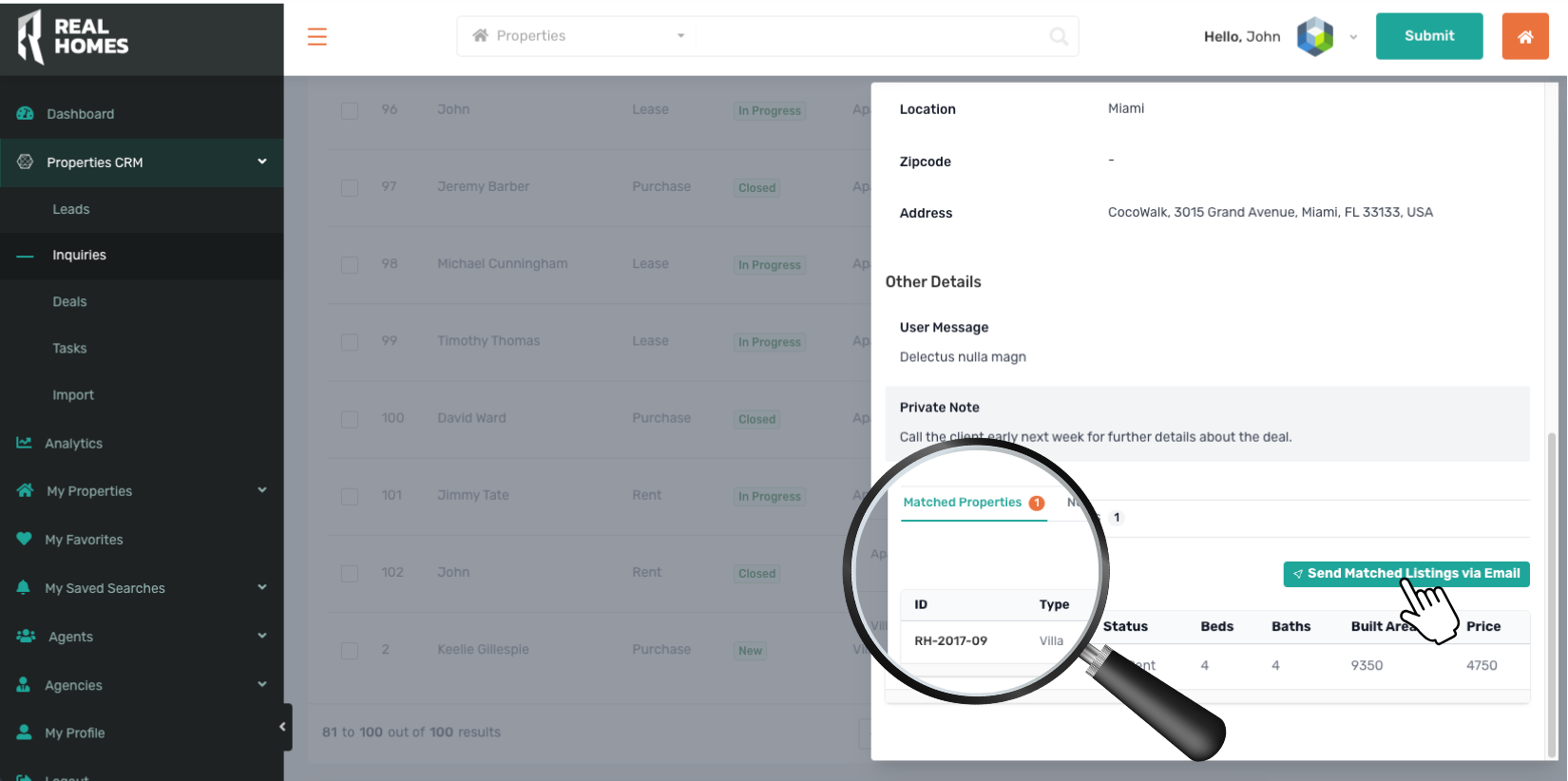
📌 Matched Properties & Send Matched Listings via Email
The RealHomes CRM automatically identifies properties that match a lead’s search criteria or inquiry details.
These appear under the Matched Properties tab inside the lead or inquiry detail panel.
Matched Properties allow agents to:
- View suggested listings tailored to the lead’s preferences
- Review property details such as Type, Status, Beds, Baths, Built Area, and Price
- Quickly prepare follow-up communication
To streamline outreach even further, RealHomes CRM includes a Send Matched Listings via Email button.
This enables agents to send a curated set of listings directly to the lead with a single click.
This feature is ideal for:
- Responding to new inquiries
- Following up with cold leads
- Sending personalized recommendations
- Increasing engagement and conversion rates
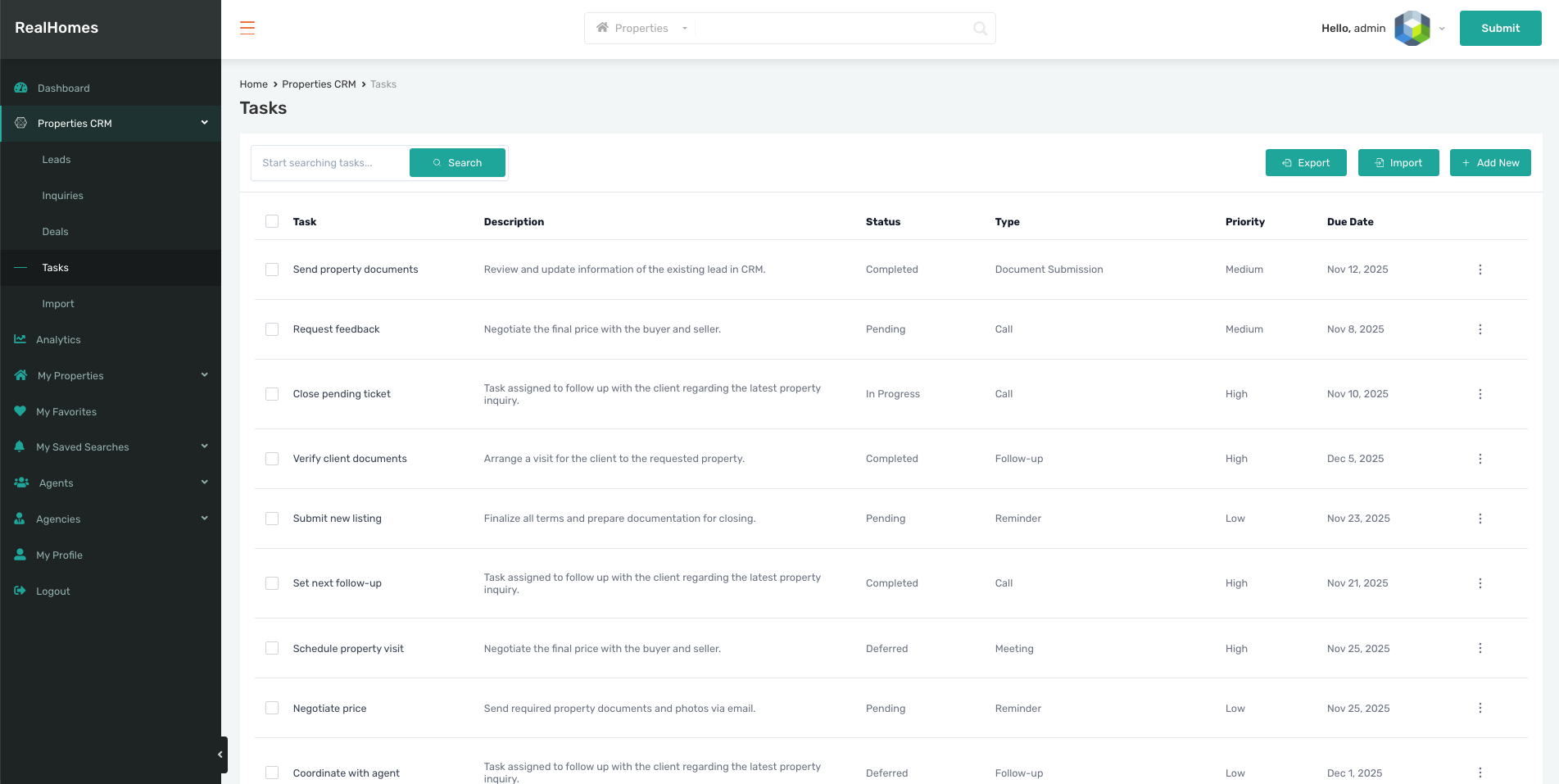
📝 Tasks
A clear to-do manager for daily operations:
🧩 Step 4: Managing CRM Data (Add, Import, Export)
Each CRM module (Leads, Inquiries, Deals, Tasks) includes:
- + Add New
- Import
- Export
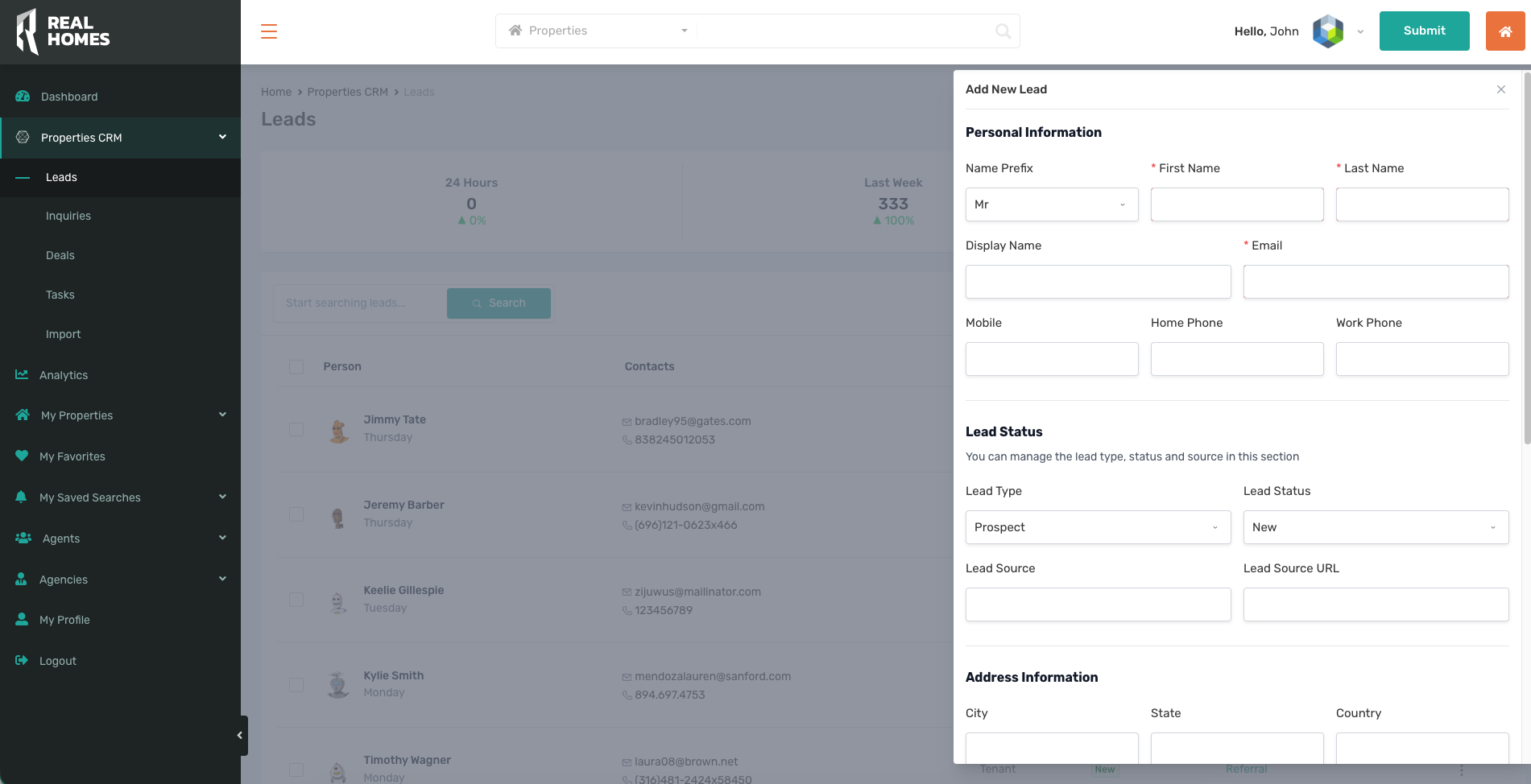
➕ Add New Records
Click + Add New to open a right-side slide-in panel.
📥 Step 5: Importing CRM Data (CSV)
Navigate to Properties CRM → Import.
Upload Your CSV File
The Import module allows uploading:
- Leads
- Inquiries
- Deals
- Tasks
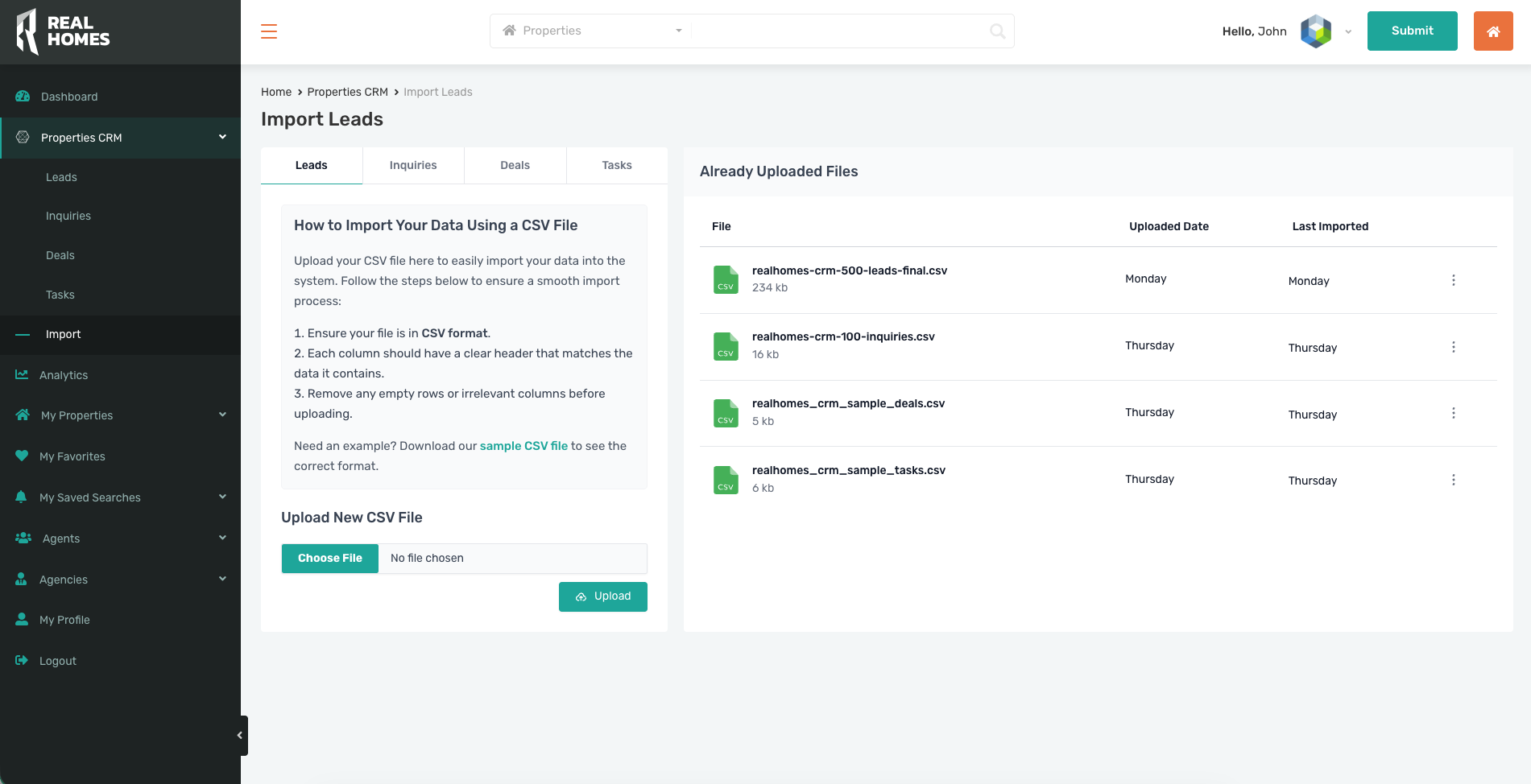
CSV Import Guidelines
Before uploading:
- Ensure the file is in CSV format
- Verify each column has a clear header
- Remove empty or irrelevant rows
Download the sample CSV for guidance.
🗂️ Field Mapping
After uploading your CSV, you’ll match your CSV columns to RealHomes CRM fields.
Example:
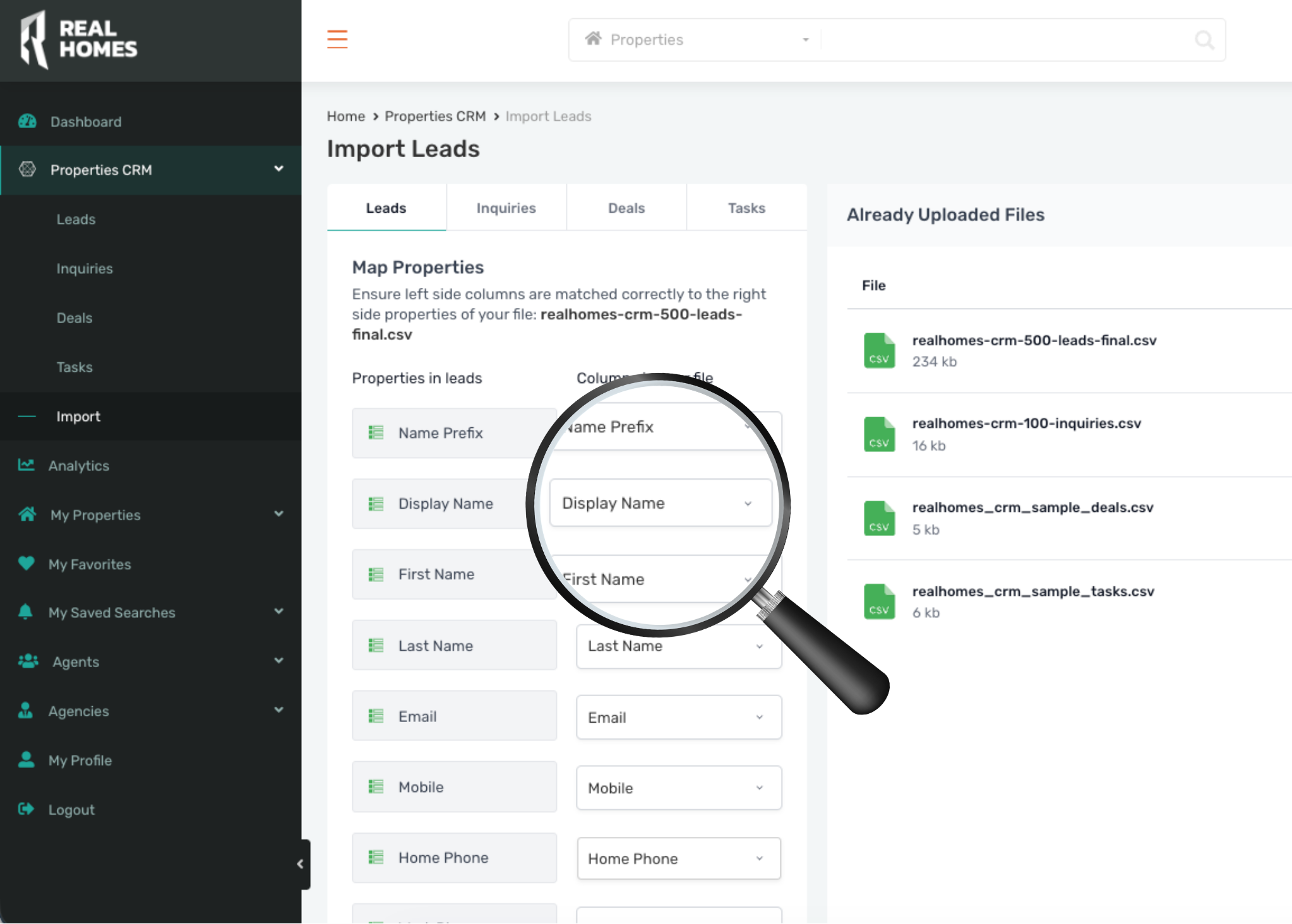
This ensures clean, accurate imports with no mismatched data.
🚀 Step 6: Accessing All CRM Features in the Frontend Dashboard
Agents and users can access all CRM modules through:
- Leads
- Inquiries
- Deals
- Tasks
- Import
- Analytics
They can:
- Update lead statuses
- Add notes
- View related inquiries
- Access saved searches
- Manage task progress
- Send matched listings to clients
🆘 Need Help?
If you still have questions:
👉 Log in or register:
https://support.inspirythemes.com/login-register/
👉 Submit a support ticket:
https://support.inspirythemes.com/ask-question/
Our support team is ready to assist you.