Mega Menu Setup
This guide explains how to enable the mega menu feature, create or import a template, and assign it to a menu item.
Prerequisite
Please note: The Mega Menu feature is only available for the Modern and Ultra design variations.
Important: Desktop Only
The Elementor Mega Menu is exclusively designed to be displayed on large screens (Desktop). It will not work on mobile devices or small screens.
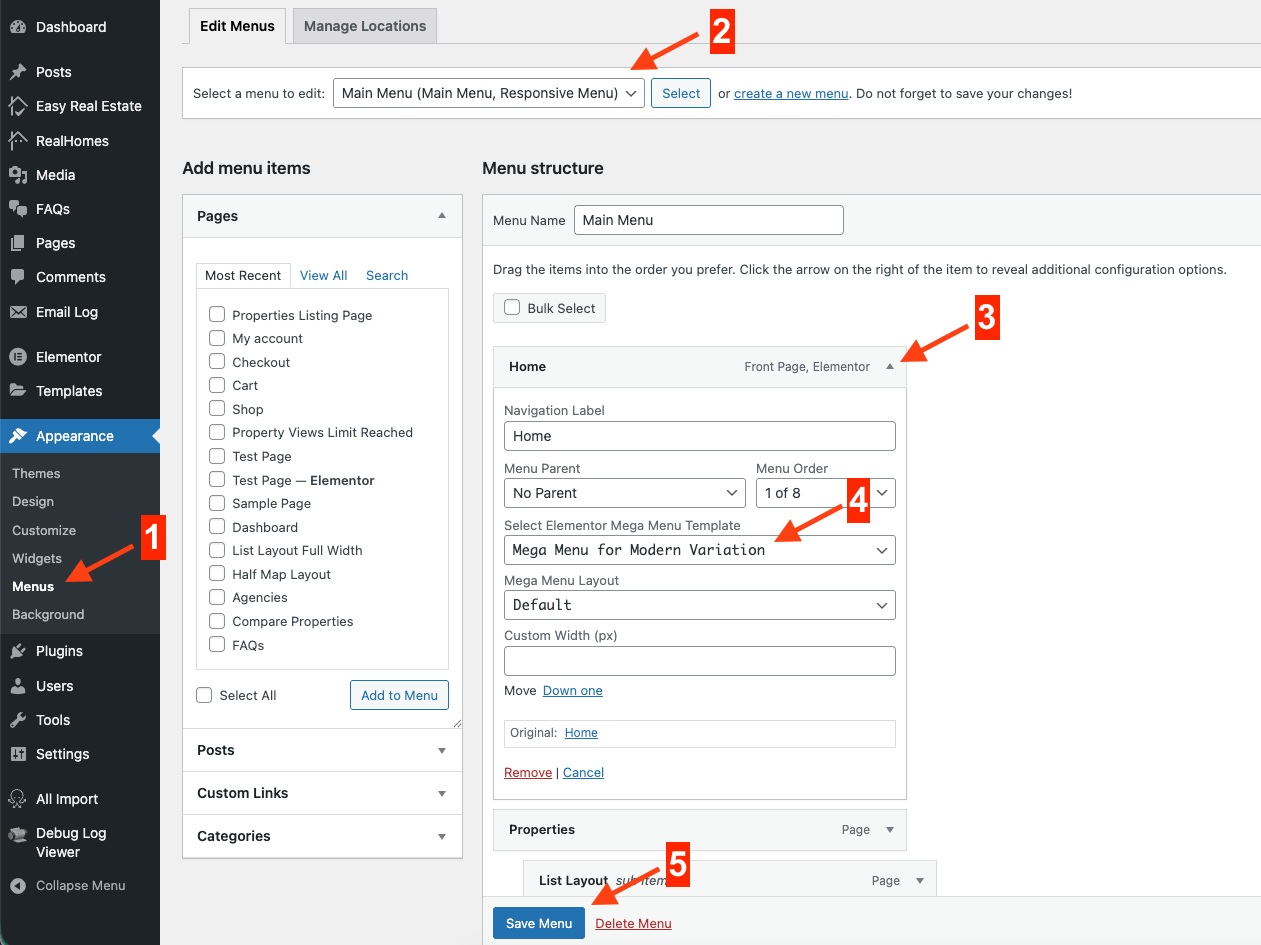
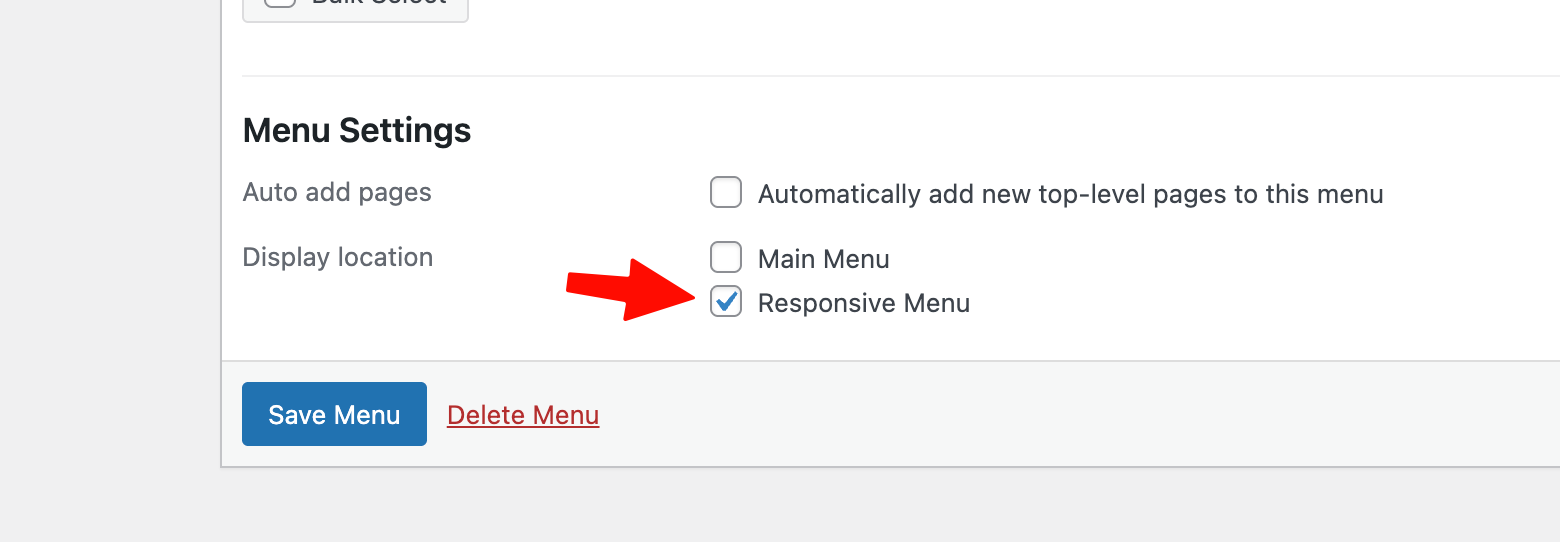
For small screens, you must create a standard menu in Dashboard → Appearance → Menus and assign it to the Responsive Menu location.
Step 1: Enable the Mega Menu Feature
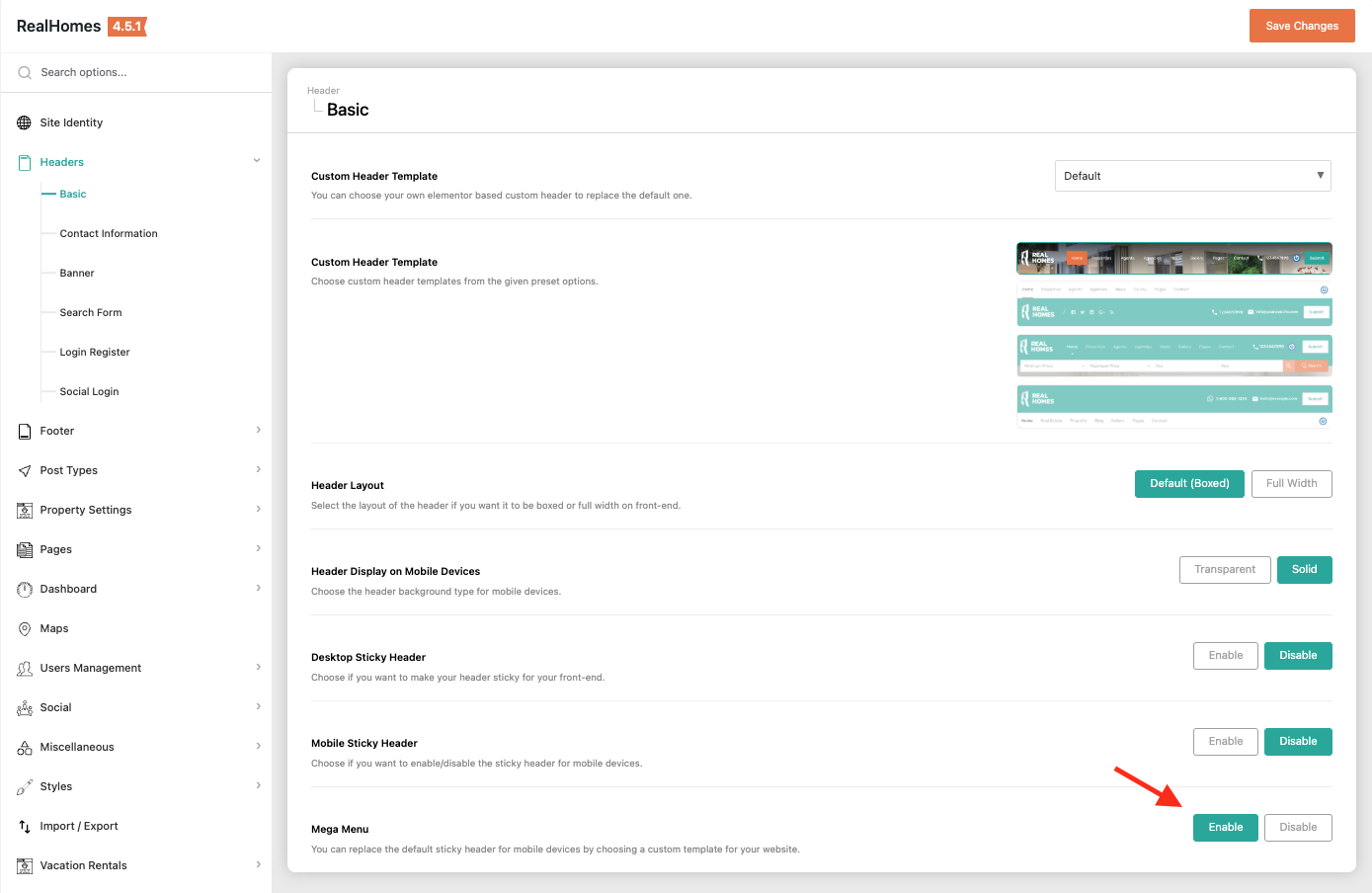
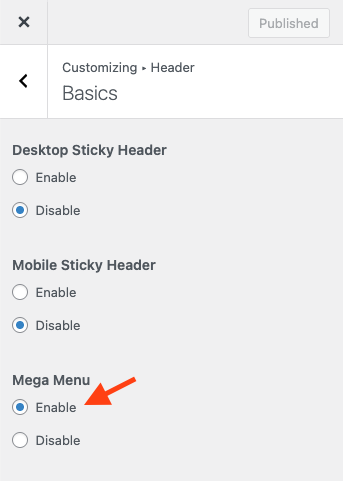
Before you can assign a template, you must globally enable the mega menu feature. Navigate based on your version:
RealHomes Settings
➤ ➤ ➤ ➤
Legacy Settings
➤ ➤ ➤ ➤
Find the Mega Menu setting and select Enable. Publish your changes.
Step 2: Get a Mega Menu Template
You must have an Elementor template saved in your library. You can either import our pre-built templates or create your own from scratch.
Option A: Import Pre-built Templates (Recommended)
- Locate the main theme package
**rh-main-package.zip**and extract it. - Navigate to the
rh-main-package/Elementor Templates/19 - Mega Menus/folder to find the template JSON files.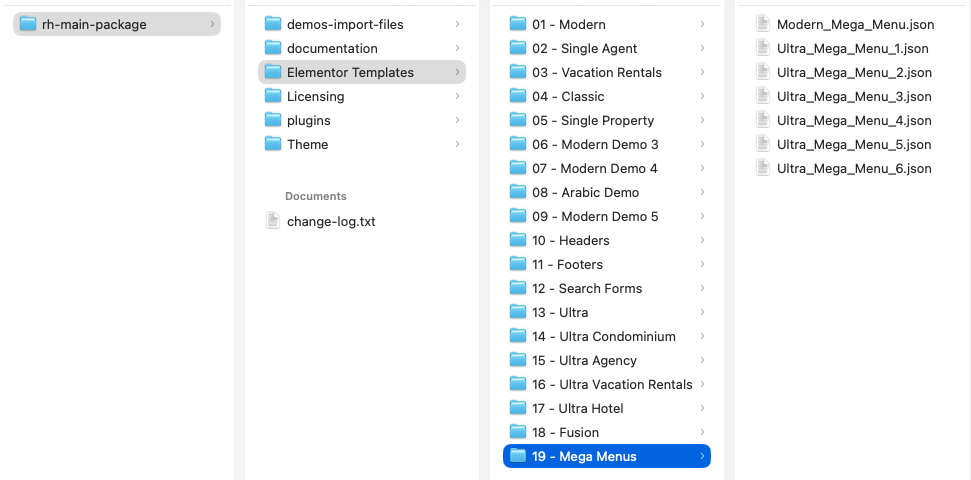
- In your WordPress dashboard, go to Templates → Saved Templates.
- Click the Import Templates button at the top of the page.
- Select the JSON file you want to use and click Import Now.
The template is now in your library and ready to be assigned.
Option B: Create Your Own Template
You can design a completely custom mega menu using the Elementor editor.
- Go to Dashboard → Templates → Add New.
- Select a template type (e.g., "Page" or "Section").
- Give your template a descriptive name (e.g., "Custom Properties Menu").
- Click Create Template.
- Design your layout using the Elementor editor. Add columns, images, listing carousels, or any other widgets you need.
- When finished, click Publish (or Update).
Your new custom template is now saved in the library.
Step 3: Assign the Template to a Menu Item
Finally, assign your imported or created template to a top-level item in your navigation menu.
- Go to Dashboard → Appearance → Menus.
- Ensure you have the correct menu selected (e.g., "Main Menu").
- Click the small arrow on a top-level menu item to expand its options.
- Find the "Select Elementor Mega Menu Template" dropdown.
- Choose the template you imported or created in Step 2.
- Click Save Menu to apply the changes.