Homepage Settings (Modern)
The Modern design of RealHomes offers a flexible, widget-based homepage layout. You can configure everything directly from the page editor.
Accessing Homepage Settings
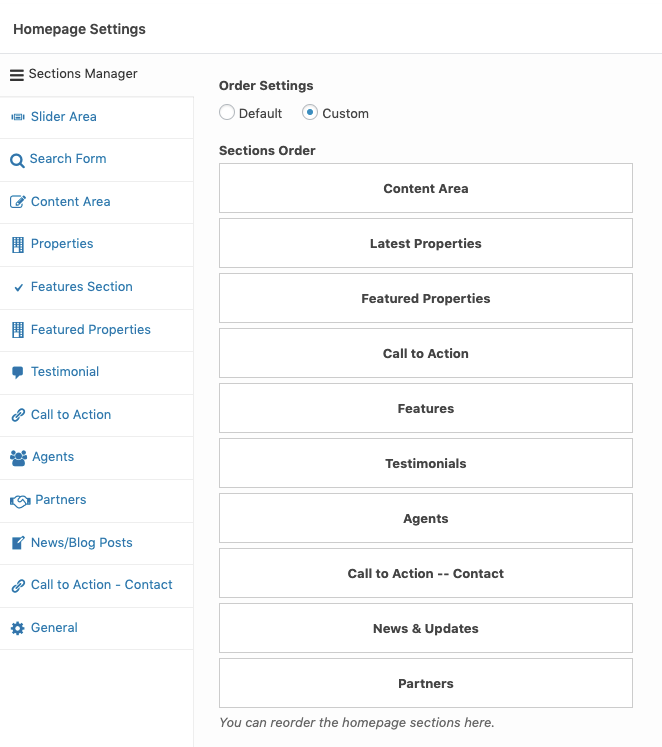
- Go to Dashboard → Pages.
- Find the page you've set as your Front Page (usually named "Home").
- Click Edit.
- Scroll down to the Homepage Settings meta box.
1. Sections Manager
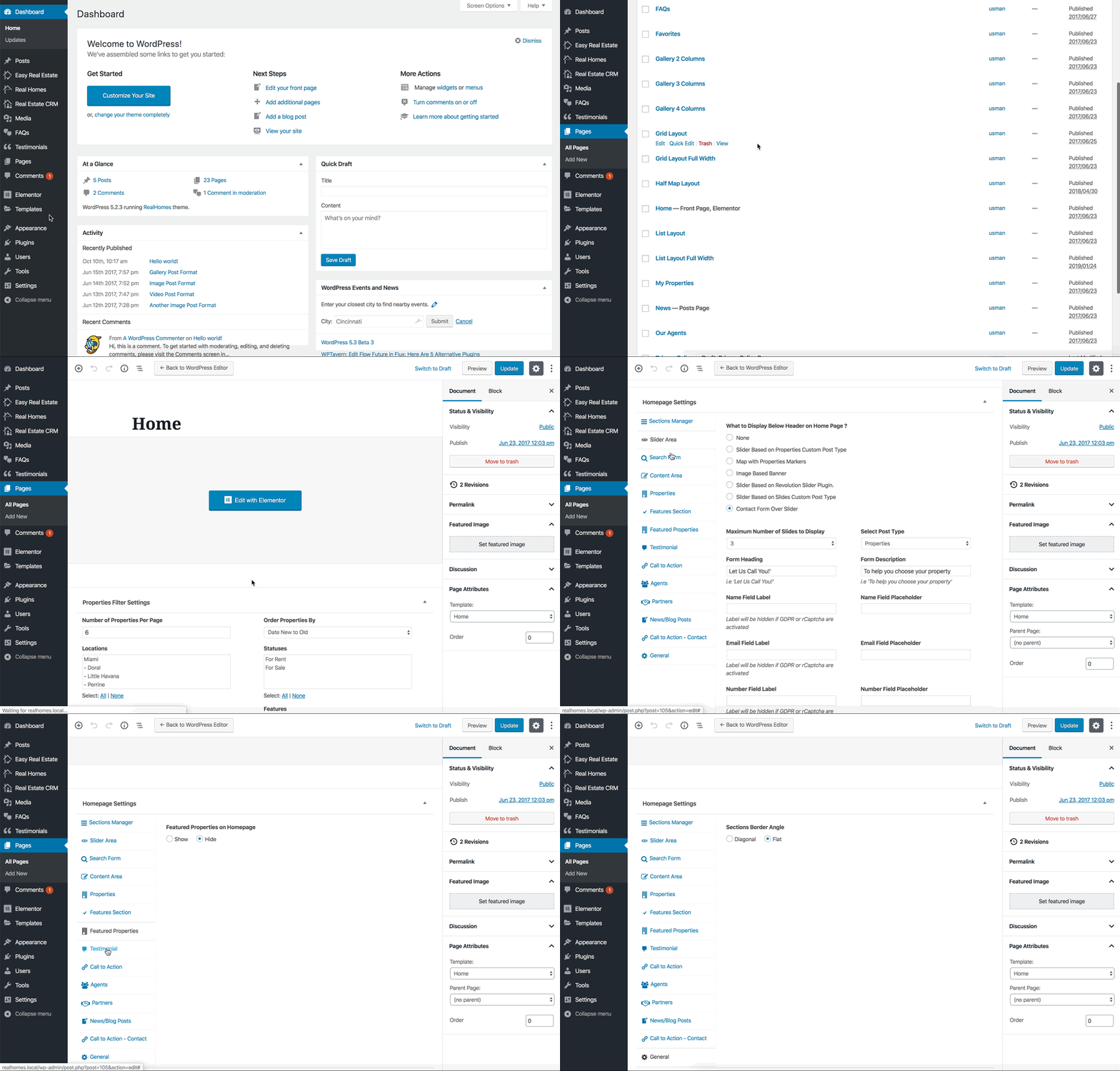
Control the layout of your homepage with the Sections Manager. Want the Blog section at the top? Or maybe the Features section right after the slider?
- Drag and Drop sections to reorder them using the handle on the left.
- Show/Hide sections using the eye icon.
2. Slider Area
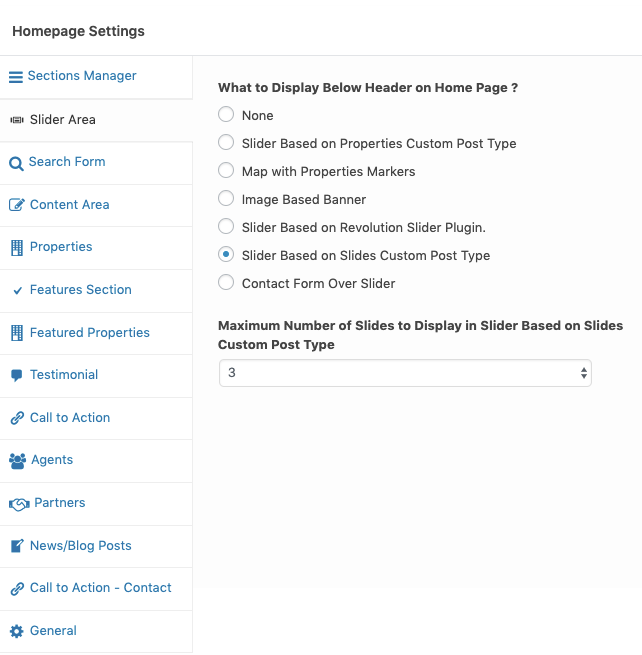
The top section of your homepage is the most visual part. You have 7 different options to choose from in the Slider Area tab.
Available Slider Types
- Properties Custom Post Type: Automatically creates slides from your properties. (Simplest & Most Popular)
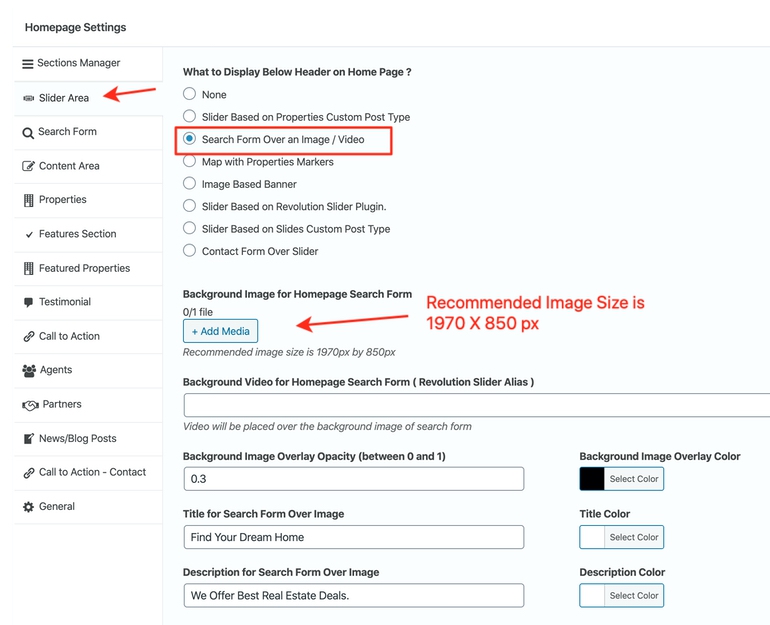
- Search Form Over Image/Video: A large background image or video with the search form front and center.
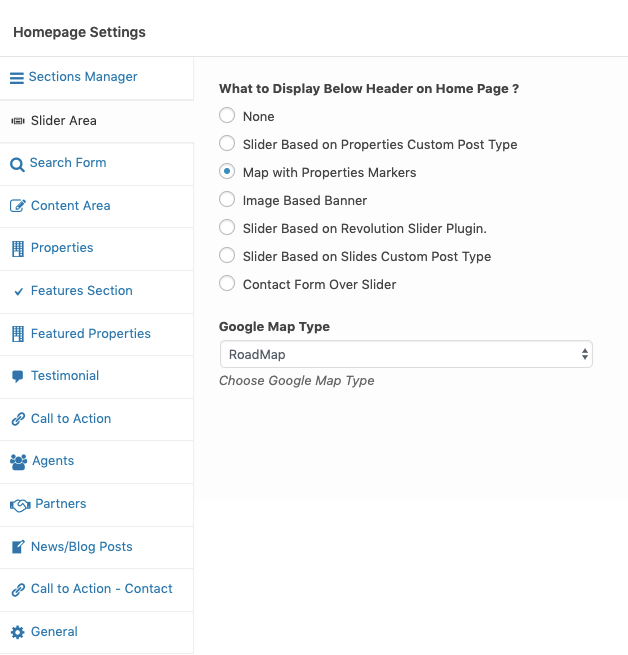
- Map with Properties Markers: Displays a Google Map with pins for your properties.
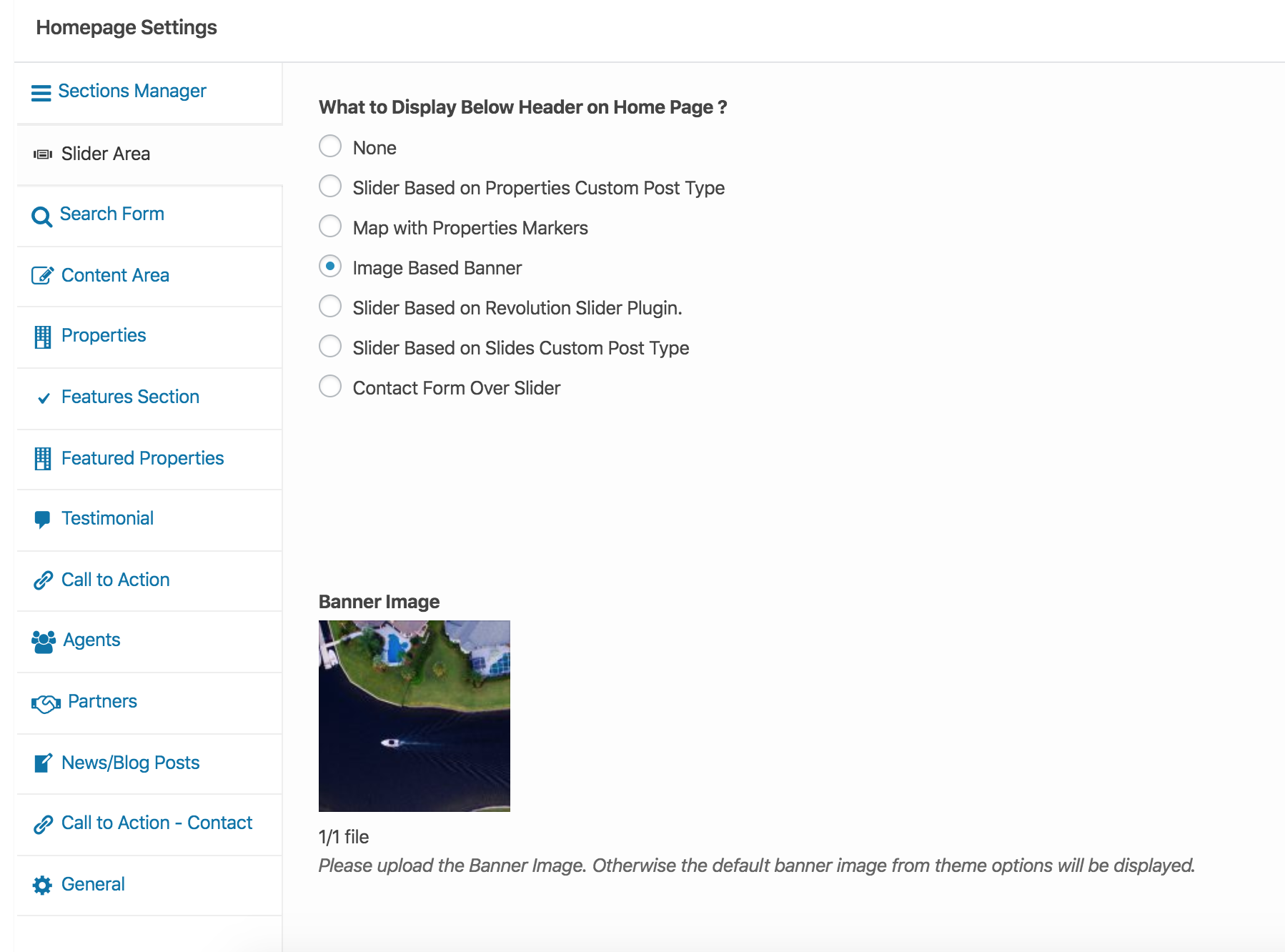
- Image Based Banner: A static banner image (like standard sub-pages).
- Revolution Slider: Use the powerful Slider Revolution plugin for complex, animated sliders.
- Slides Custom Post Type: Create custom slides manually (Image + Text) without linking to specific properties.
- Contact Form Over Slider: Displays a contact form over a background image.
Configuring Your Slider
Option 1: Properties Based Slider
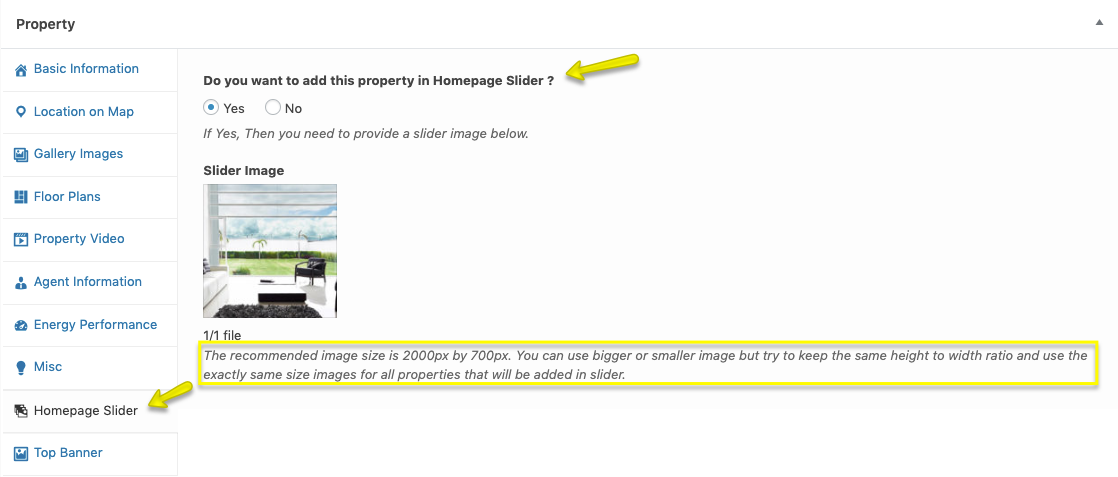
Select Slider Based on Properties Custom Post Type. To add a property to the slider: 1. Edit a Property. 2. Look for the Homepage Slider tab in the Property Meta Box. 3. Select Yes and upload a Slider Image.
Option 2: Search Form Over Image / Video
Select Search Form Over Image / Video. * Upload your background image/video directly in the settings. * Configure the search form fields in RealHomes → Customize Settings → Properties Search.
Option 3: Map with Properties Markers
Select Map with Properties Markers. * Ensures your Google Maps API Key is configured. * The map will automatically display pins for properties with locations.
Option 4: Image Banner
Select Image Based Banner for a simple, static header.
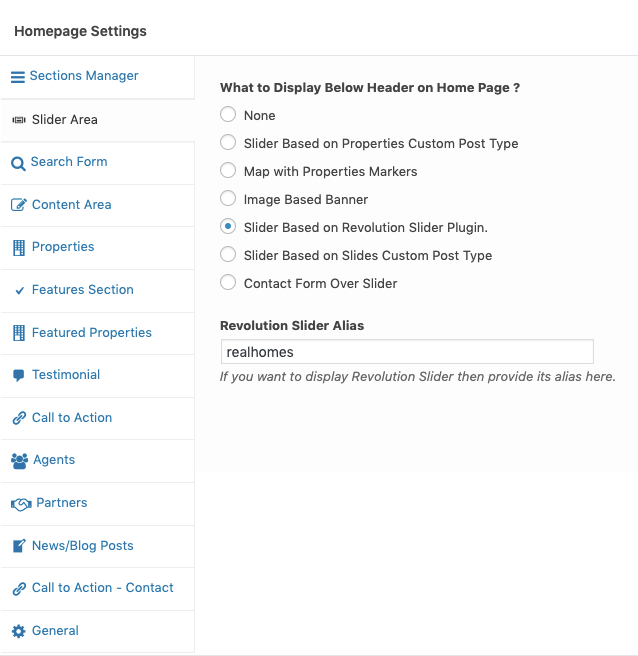
Option 5: Revolution Slider
Select Slider Based on Revolution Slider Plugin.
* Enter the Revolution Slider Alias (e.g., realhomes).
* Note: You must install and import the demo slider first via Dashboard → Slider Revolution.
Option 6: Slides Custom Post Type
Select Slider Based on Slides Custom Post Type. * Create slides in Dashboard → Slides → Add New. * They will automatically appear here.
Option 7: Contact Form Over Slider
Select Contact Form Over Slider for lead generation focus.

3. Homepage Content Modules
Configure the other sections of your homepage by clicking their respective tabs.
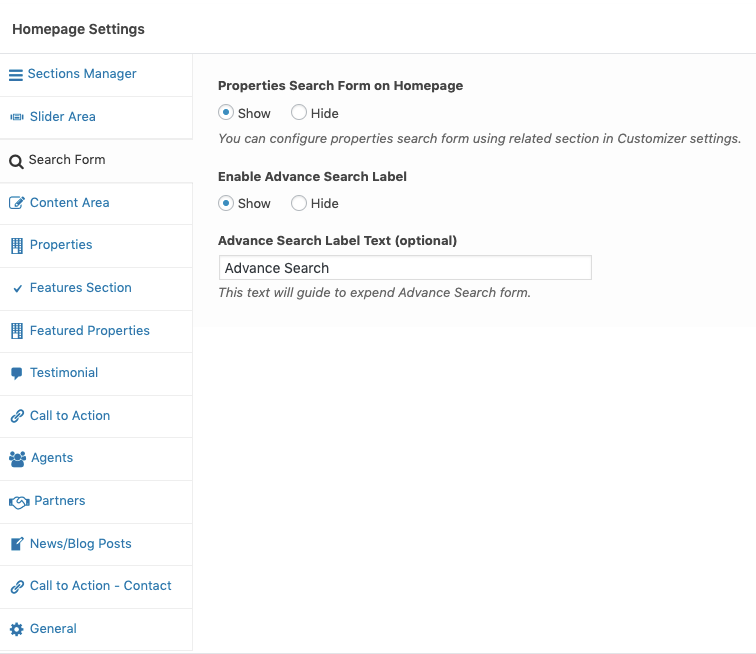
Search Form
Customize the search form appearance if it's not part of the slider.
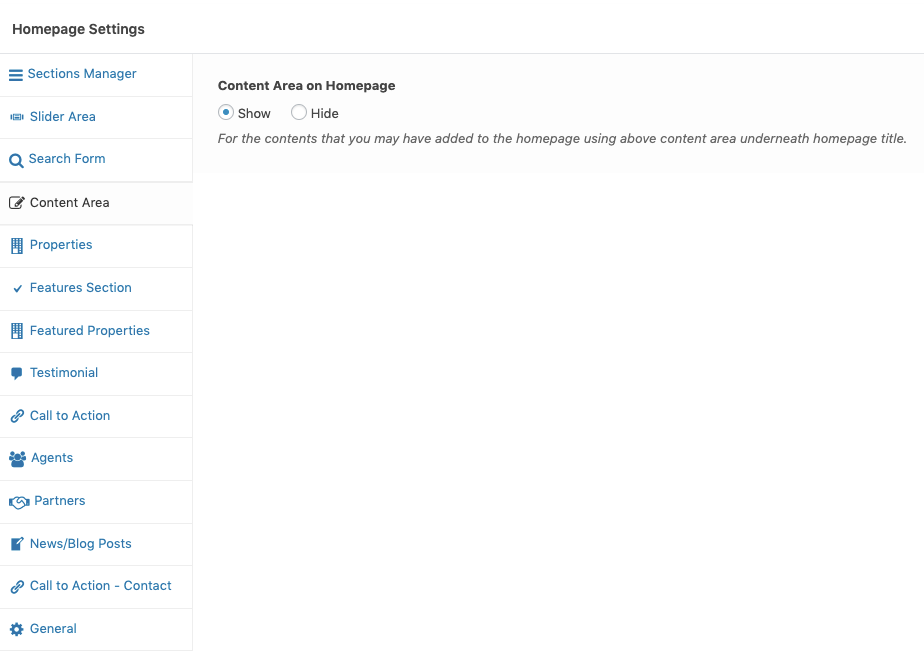
Content Area
Display standard page content (text/images from the WordPress editor) on the homepage.
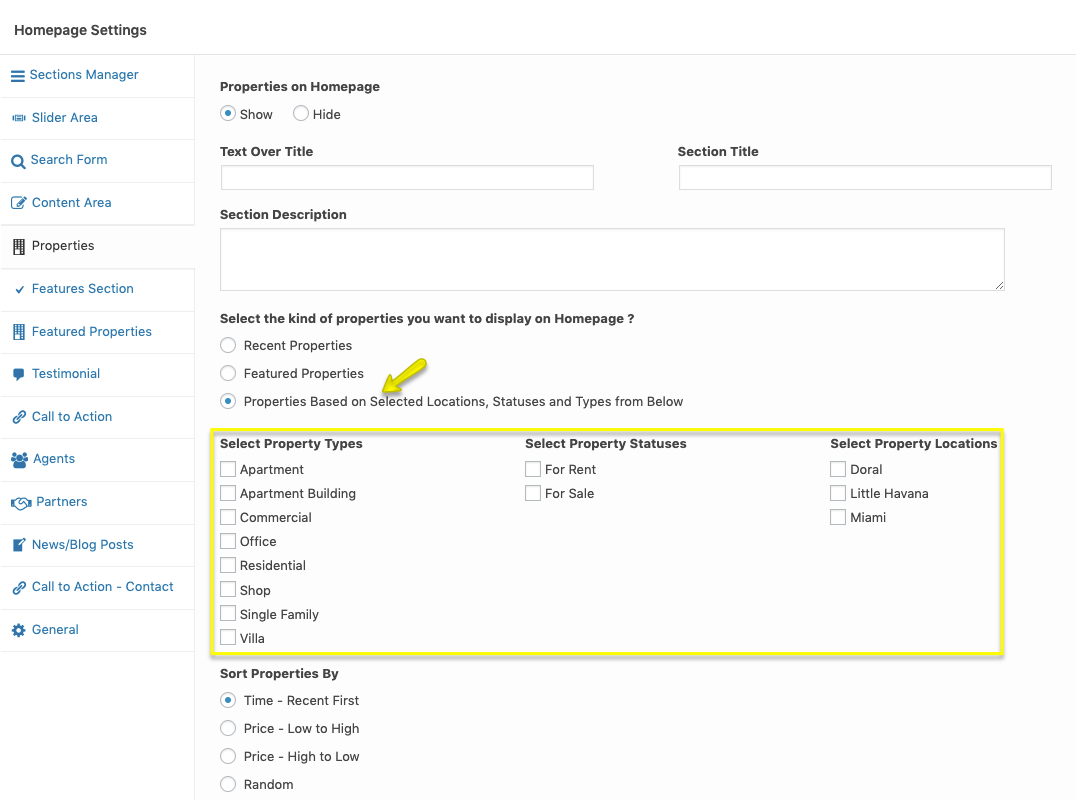
Properties Section
Select which properties to show (Recent, Featured, etc.) and layout styles (Grid/List).
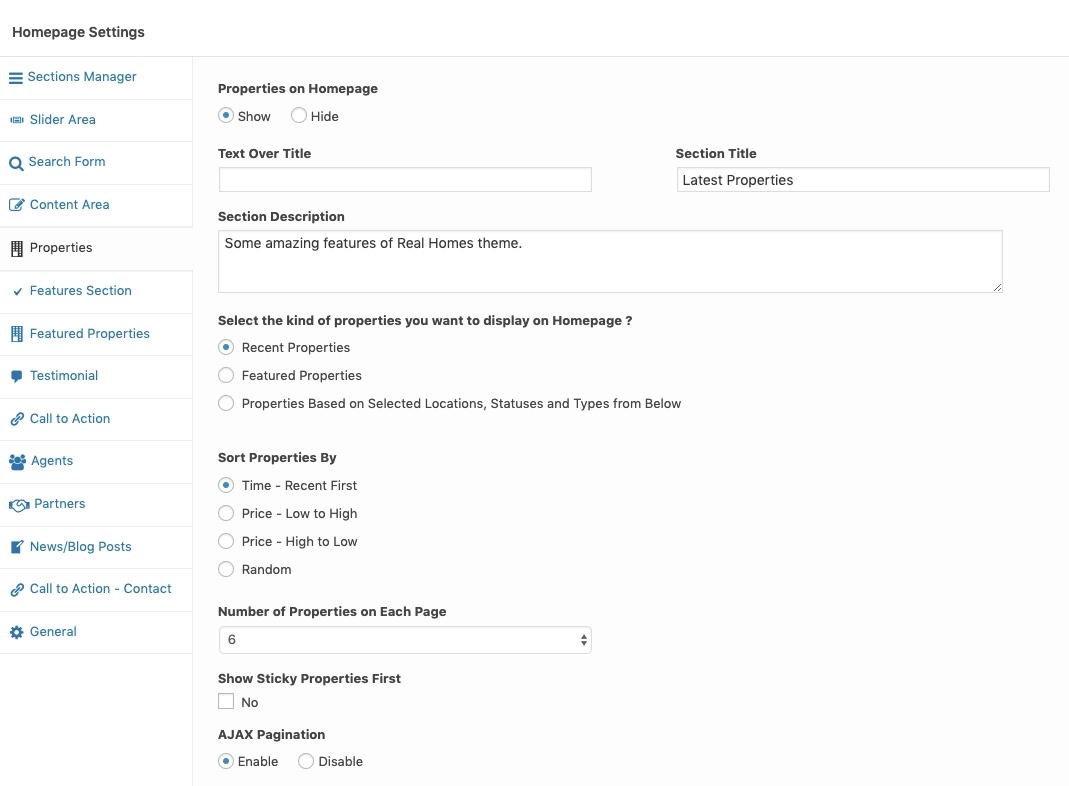
Filter Properties: You can also restrict the properties shown by Location, Status, or Type.
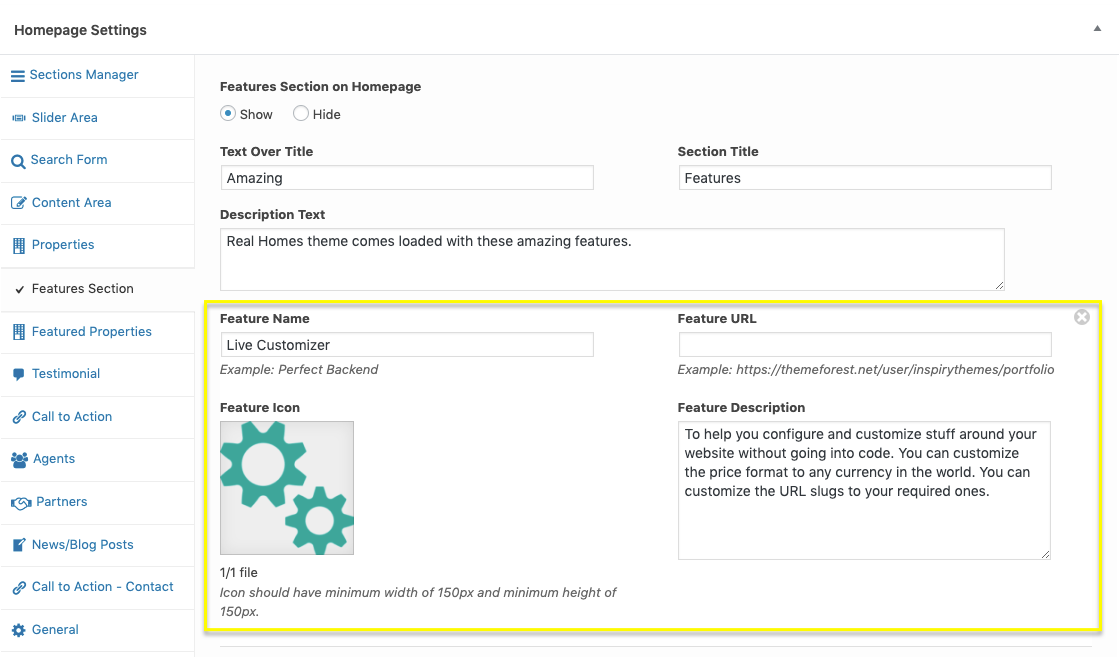
Features Section
Highlight your agency's strengths (e.g., "Trusted by Thousands"). * Click + Add more to add multiple features (Icon, Title, Description).
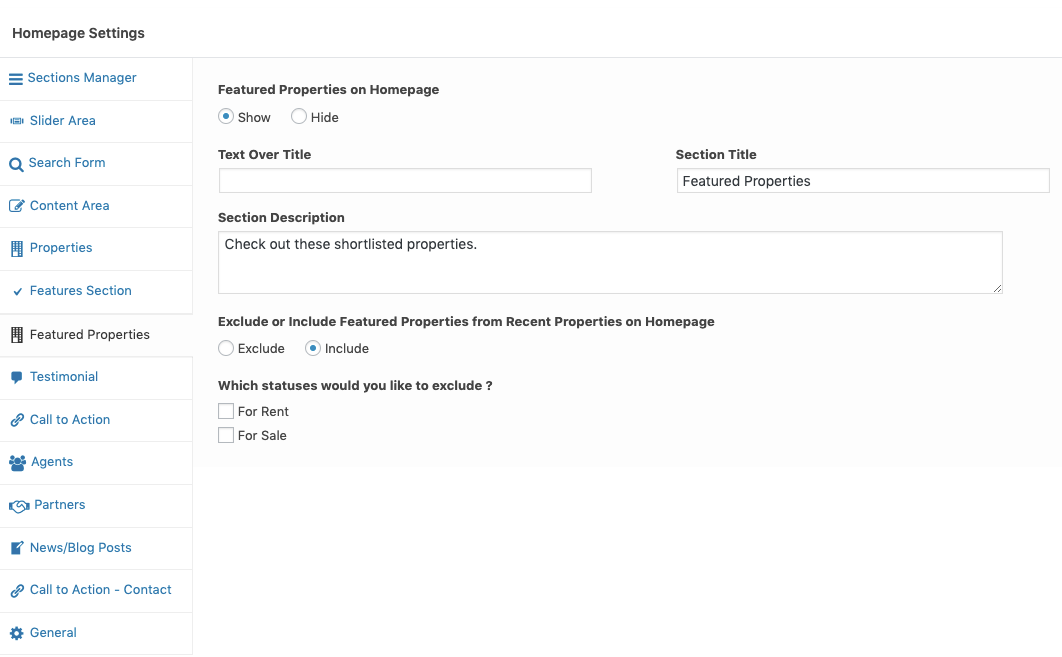
Featured Properties
A dedicated section for your top listings.
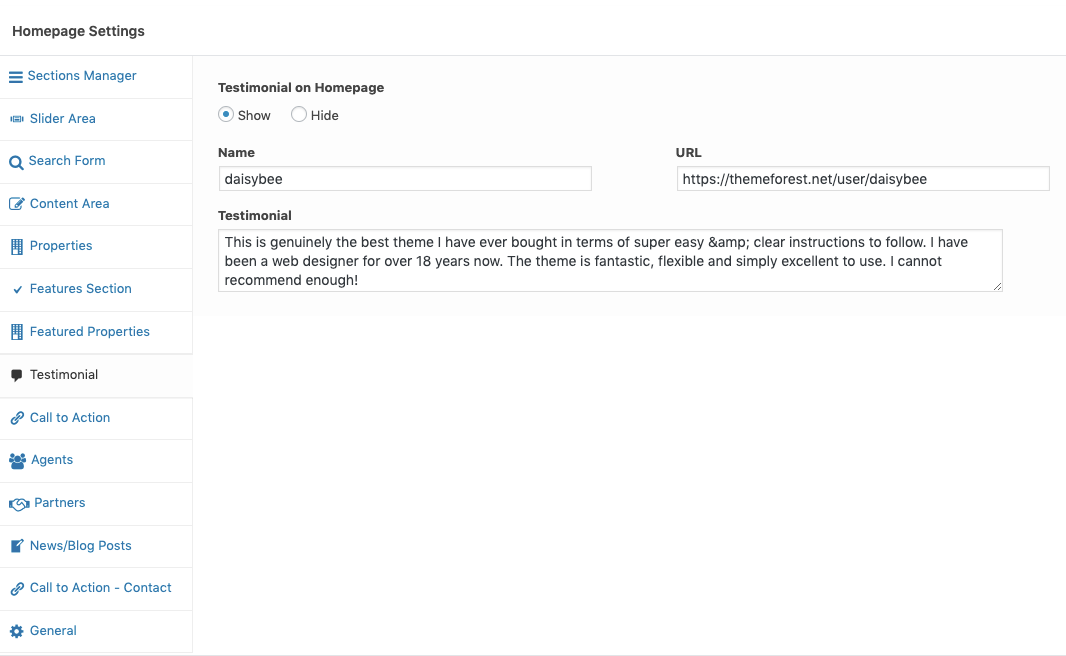
Testimonials
Showcase client feedback.
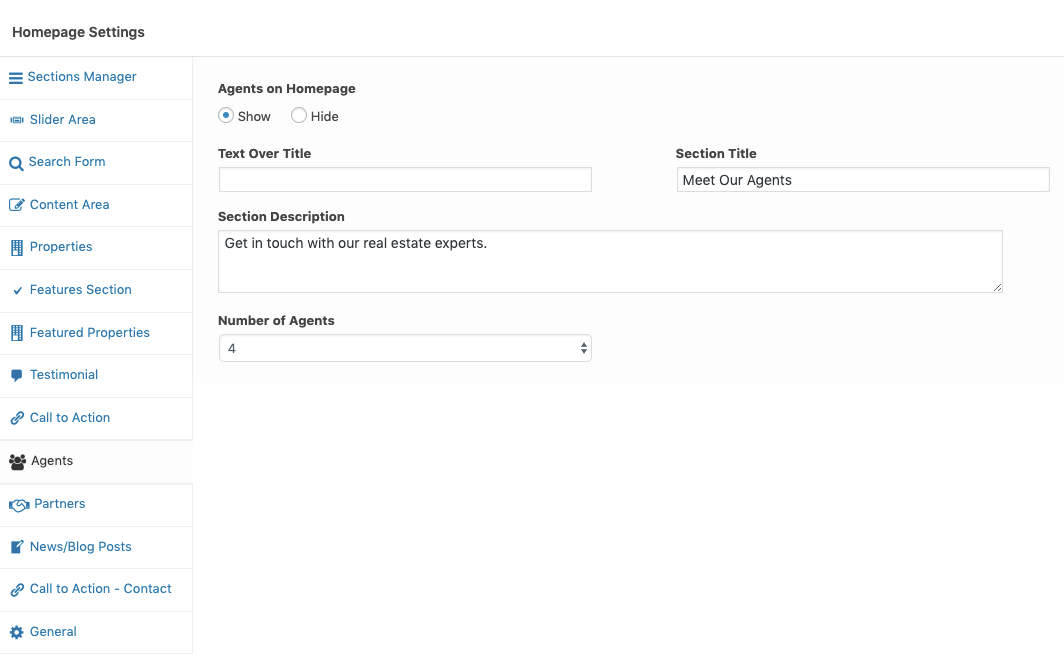
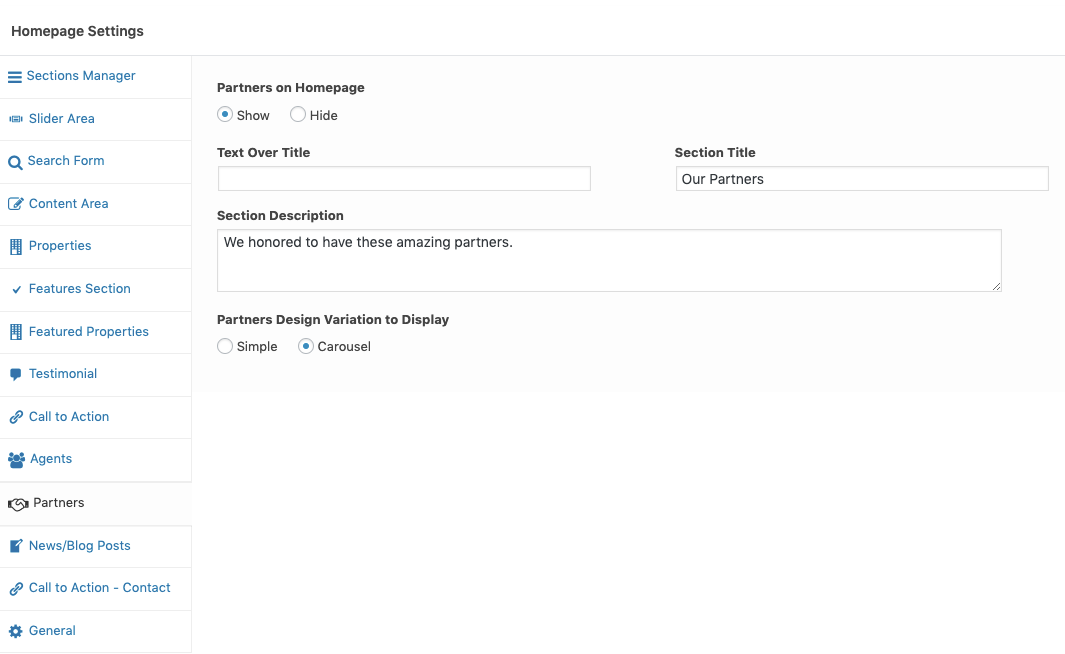
Agents & Partners
Display your team and business partners.
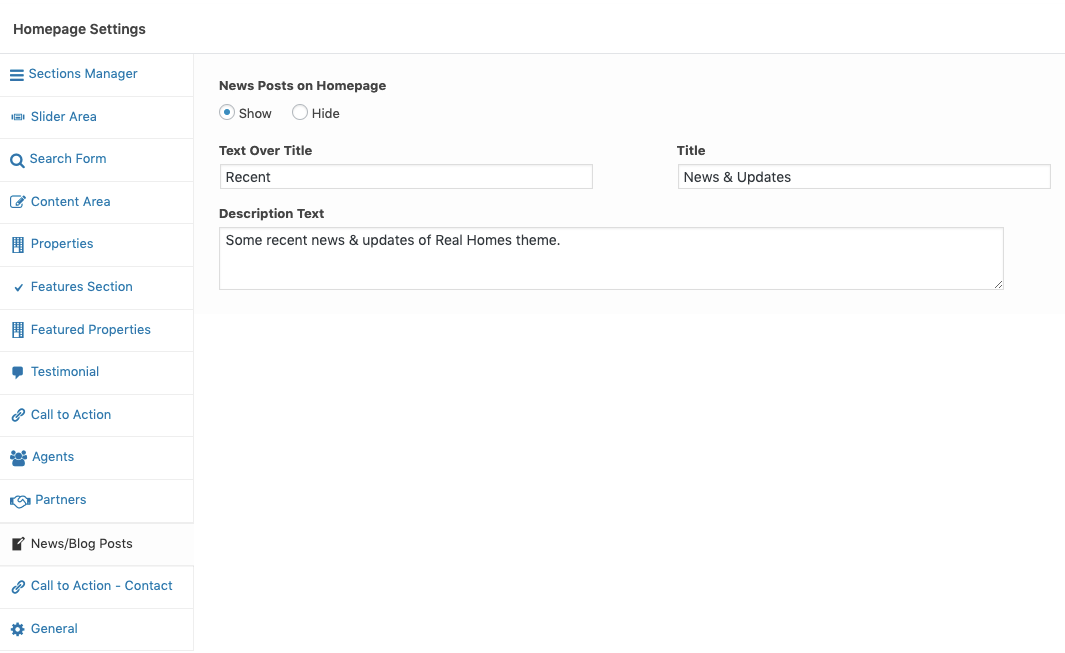
News / Blog Posts
Show your latest blog articles.
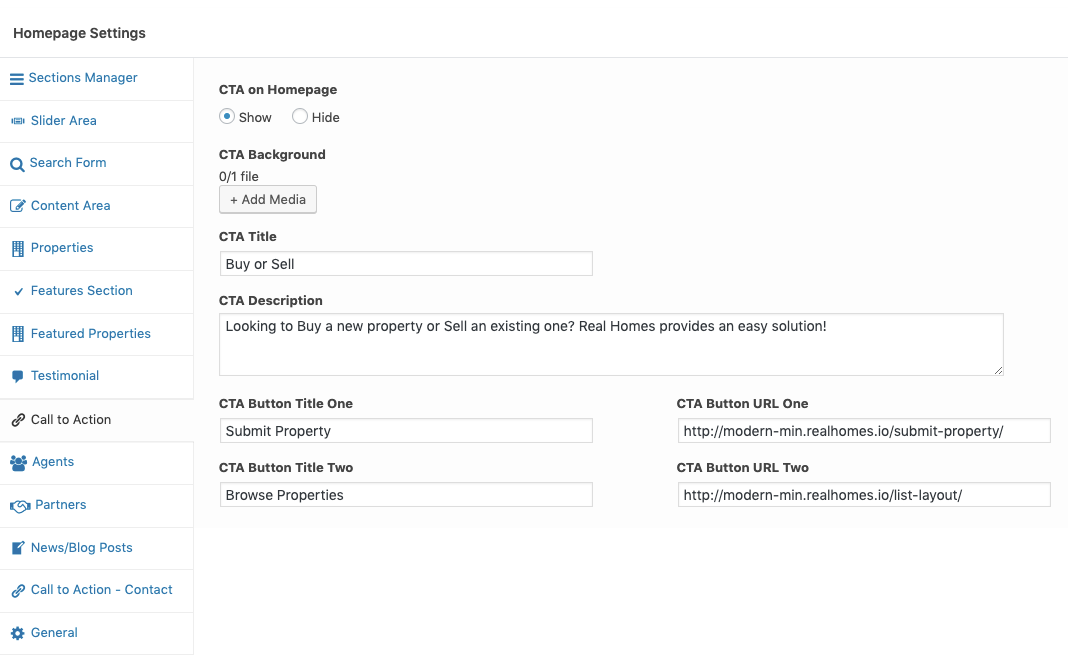
Call to Action (CTA)
Add a banner encouraging users to "Contact Us" or "Submit Property".
4. General Settings (Diagonal Design)
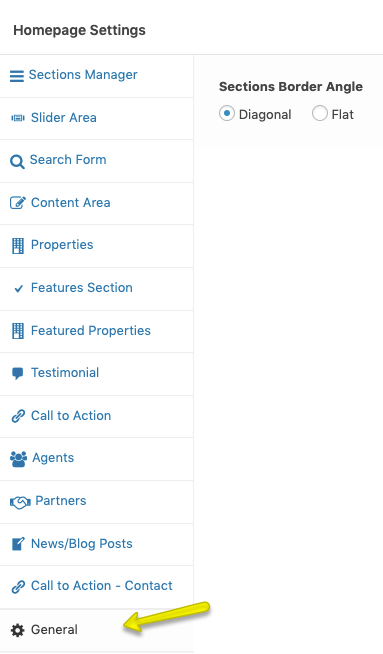
Want that stylish diagonal look? Go to the General tab to control the Sections Border Angle. * Diagonal: Adds the angled separators. * Flat: Uses standard horizontal lines.